
 OpenAI - ChatGPT, Sora
 Google - Gemini, Nano Banana
 Anthropic - Claude
 xAI - Grok
 Deepseek
 Alibaba - Qwen
 ByteDance - Doubao
 All Models
 Enterprise Plans
 AI Application Development
 AI Translator API
 AI SEO/GEO Service
 GEO-Optimized PR Service
 Web Scraping Service
 OpenClaw
 Top AI Tools
 Top AI Robots
 Log in












How to Use Claude Cowork in 2026: The Ultimate Step-by-Step Guide to Anthropic's AI Desktop Agent
How to Use Claude Cowork in 2026: The Ultimate Step-by-Step Guide to Anthropic's AI Desktop Agent
Tired of spending hours organizing files, drafting reports, or hunting through folders?
In 2026, Claude Cowork — Anthropic's powerful agentic mode inside the Claude Desktop app — turns Claude into your actual digital coworker. One that can read, edit, create, and organize files directly on your computer while you grab coffee.
This isn't just another chatbot. It's an autonomous AI teammate that plans, executes multi-step tasks, and works in the background. In this complete 2026 guide, you'll learn exactly how to set it up, use it like a pro, and 10x your productivity — even if you're not technical.
What Is Claude Cowork — and Why Everyone's Talking About It
Claude Cowork brings the same powerful agentic architecture from Claude Code to everyday knowledge work — no terminal required. It lives inside the free-to-download Claude Desktop app.
- Access a folder you choose (fully sandboxed and secure)
- Plan and execute complex tasks autonomously
- Track progress in real time
- Create artifacts — new files, spreadsheets, reports — directly on your machine
It's perfect for freelancers, marketers, researchers, PMs, and anyone drowning in desktop chaos. Early users in 2026 are calling it "the first AI that actually does the work instead of just talking about it."

Requirements Before You Start
- Claude Desktop app (Mac or Windows x64) — Download from claude.com/download
- Paid subscription — Claude Pro ($20/mo), Max ($100–200/mo), Team, or Enterprise
- Active internet connection (required while it works)
- The app must stay open during tasks
Free tier? Not yet — Cowork is still a research preview reserved for paid users.
Step-by-Step Setup: Takes 2 Minutes
- Download & Open Claude Desktop — Update to the latest version.
- Switch to Cowork Mode — In the sidebar or top tabs, click Cowork (next to Chat).
- Grant Folder Access — Click "Work in a folder" → select the directory you want Claude to use. Start with something safe like Downloads or a dedicated project folder.
- Describe Your Task — Type a natural-language request. Example:
"Organize this messy Downloads folder. Sort files by type, rename generic ones based on content, flag duplicates, and create subfolders for Receipts, Work, and Personal." - Review & Approve the Plan — Claude shows a clear step-by-step plan. Click Start. It will ask for confirmation before any big changes.
- Watch It Work — Follow progress in the right sidebar. When finished, all new files stay right in your folder — no downloads needed.
Real Examples You Can Try Today
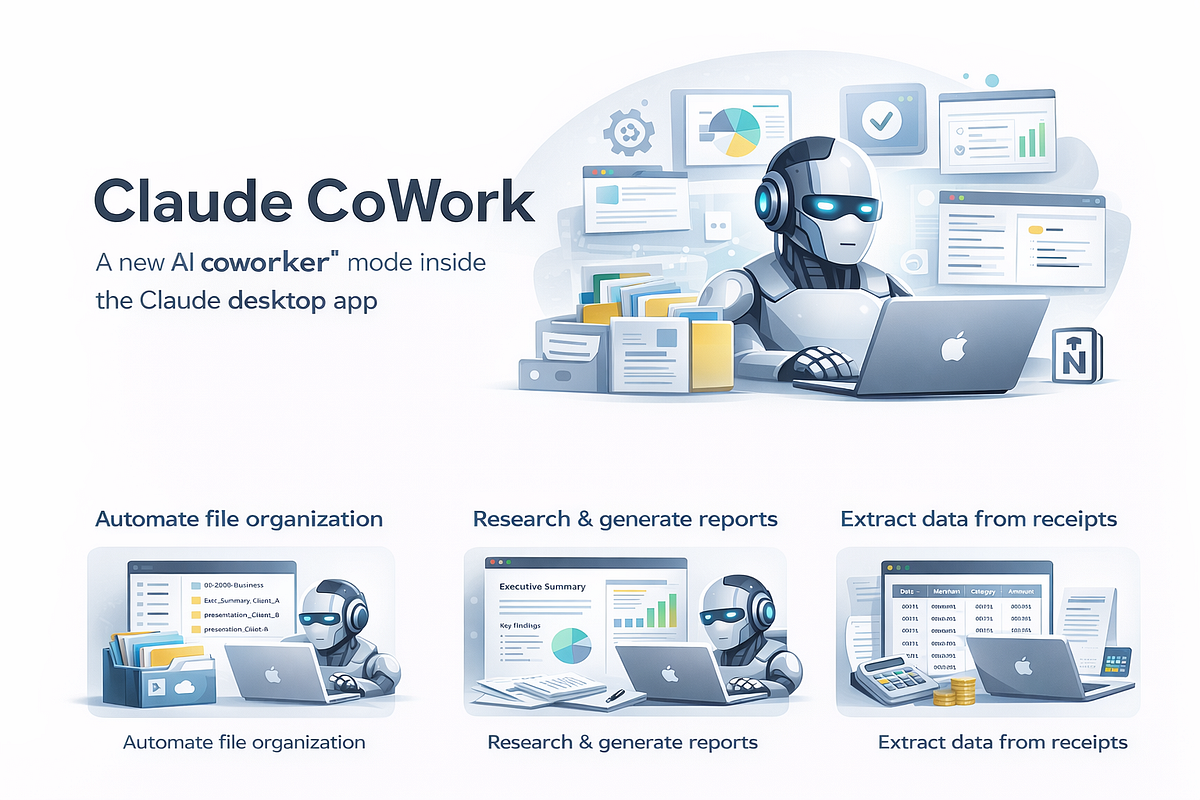
Prompt: "Clean up my Screenshots folder. Group by date, rename descriptively, delete duplicates, and move old ones to an Archive folder."
Result: 15 minutes later → perfectly organized with zero manual work.
Upload receipt screenshots or raw data → "Extract key info from these receipts, build an Excel expense report with categories and totals, and generate a summary PDF." Cowork handles OCR, calculations, and formatting automatically.
"Read all files in my 'Q1 Research' folder, synthesize key findings into a professional report with charts, and save it as report-final.docx."
Pro Tips to Get 10× More Out of Cowork
- Start small — Test on a copy of a folder first.
- Use clear, specific prompts — Include "think step by step" and your desired output format.
- Build reusable Skills — Create a
SKILL.mdfile in your folder with your brand voice or standard processes — Cowork will remember it every time. - Combine with Plugins — Connect Gmail, Google Drive, Notion, or Slack for even more power.
- Check the Progress panel — Pause or edit mid-task if needed.
- Keep the app open — It runs locally but needs the window active.
Best Use Cases by Role
Invoice automation, client folder organization, proposal generation
Content research synthesis, social media asset organization, report creation
Data crunching, literature review summaries, chart generation
Meeting transcript processing, roadmap updates, competitive analysis folders
Current Limitations — Honest Review
- Desktop-only — No web or mobile yet
- App must stay open — Runs locally, window needs to be active
- Research preview — Still in beta, occasional hiccups
- Token usage — Can add up on Max plan for heavy sessions
- No autonomous internet actions — Requires your approval for external steps
FAQ
No — requires a paid Claude plan (Pro or higher).
Yes, Windows x64 is supported. Mac is still the smoother experience for now.
Yes — everything runs locally, stays on your machine, and Anthropic doesn't train on your files.
Chat = conversation. Code = terminal power. Cowork = the easiest agent for everyday desktop work.
Download Claude Desktop, switch to Cowork mode, and try your first task right now. Most users hit their first "wow" moment within 10 minutes.
Download Claude Desktop