
 OpenAI - ChatGPT, Sora
 Google - Gemini, Nano Banana
 Anthropic - Claude
 xAI - Grok
 Deepseek
 Alibaba - Qwen
 ByteDance - Doubao
 All Models
 Enterprise Plans
 AI Application Development
 AI Translator API
 AI SEO/GEO Service
 GEO-Optimized PR Service
 Web Scraping Service
 OpenClaw
 Top AI Tools
 Top AI Robots
 Log in















How to Use Claude in Microsoft 365 Copilot — Complete 2026 Guide
Claude is now officially available inside Microsoft 365 Copilot. As of March 2026, Microsoft has rolled out support for Anthropic's Claude models — including Claude 3.5 Sonnet and Claude 4 Opus — as an alternative to GPT-4o in Copilot for Microsoft 365. Use Claude's superior long-context reasoning directly in Word, Excel, PowerPoint, Teams, and Outlook.
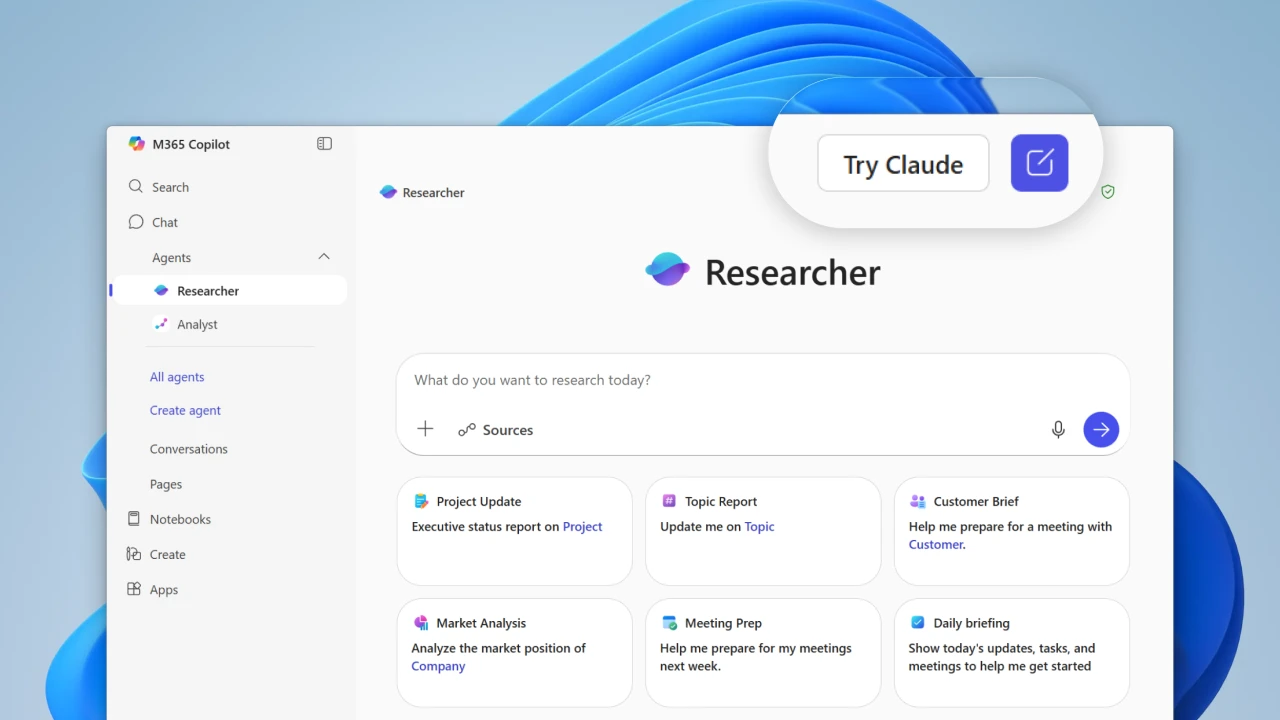
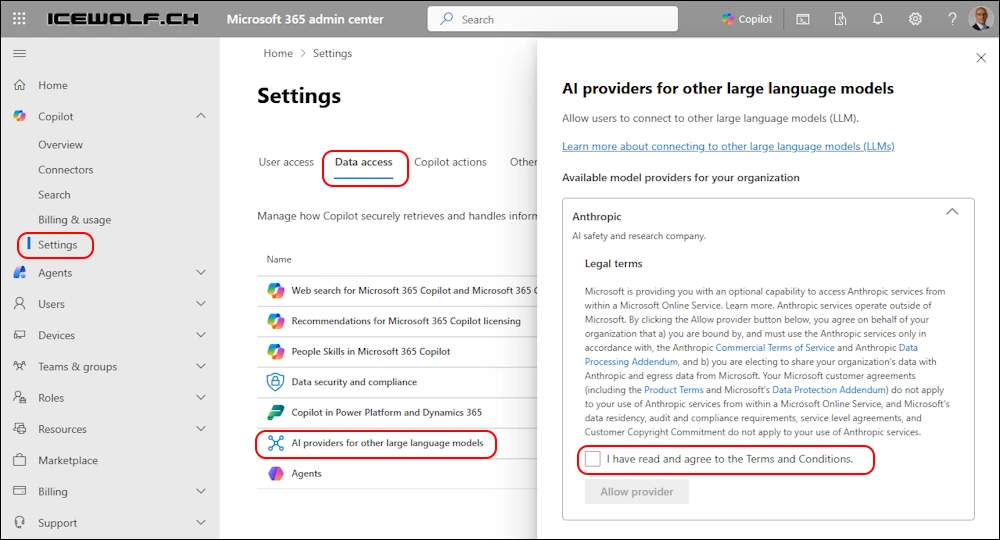
Enable Claude as an Admin (One-Time Setup)
Go to the Microsoft 365 Admin Center.
Navigate to Settings › Copilot (or search for "Copilot" in the top bar).
Click Data access or AI providers for other large language models.
Find Anthropic in the list of available providers.
Check the box "I have read and agree to the Terms and Conditions".
Click Allow provider. Changes propagate within 15–60 minutes.

Switch to Claude in Copilot (User Side)
Open any Microsoft 365 app — Word, Excel, PowerPoint, Teams, or Outlook.
Click the Copilot icon (usually on the right side or top ribbon).
In the Copilot pane, look for the model selector at the top of the panel.
Click the current model name and choose Claude 3.5 Sonnet or Claude 4 Opus. You're now using Claude inside Microsoft 365.

Best Use Cases & Prompt Examples
- Summarize long reports
- Rewrite contracts with better tone
- Generate executive summaries
- Analyze complex datasets
- Generate formulas and charts
- Create variance reports
- Turn bullet points into full slide decks
- Suggest professional layouts
- Summarize meeting transcripts
- Draft professional replies
