
 OpenAI - ChatGPT, Sora
 Google - Gemini, Nano Banana
 Anthropic - Claude
 xAI - Grok
 Deepseek
 Alibaba - Qwen
 ByteDance - Doubao
 All Models
 Enterprise Plans
 AI Application Development
 AI Translator API
 AI SEO/GEO Service
 GEO-Optimized PR Service
 Web Scraping Service
 OpenClaw
 Top AI Tools
 Top AI Robots
 Log in






How to Use Google Opal AI: A Zero-Code Guide to Building Your First AI Mini-App
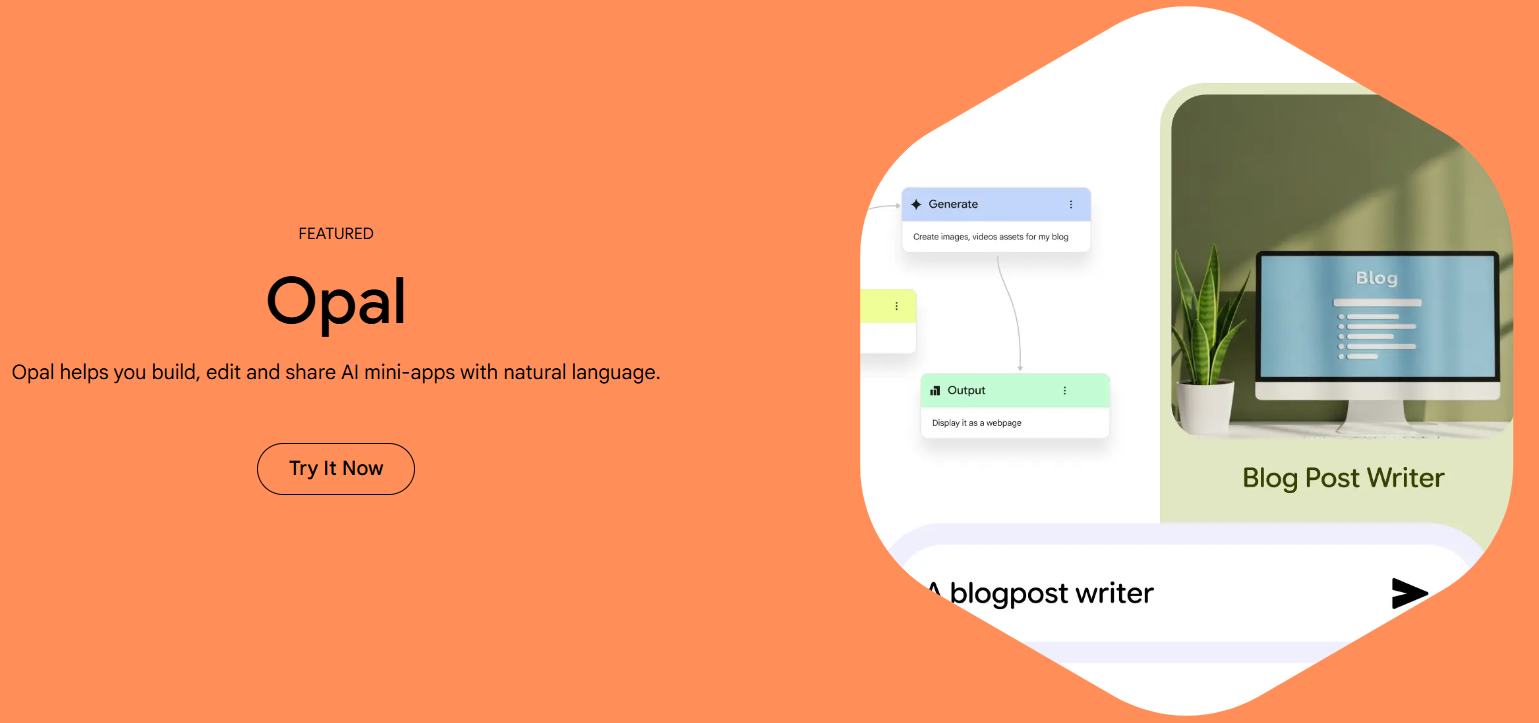
In today's fast-paced digital world, artificial intelligence is no longer just for coders or tech giants—it's for everyone. Imagine describing a simple idea in plain English, like "Create an app that summarizes YouTube videos and generates social media posts from them," and watching an AI tool build it for you in minutes. That's the magic of Google Opal AI, a free experimental platform from Google Labs that lets you craft custom AI-driven mini-apps without writing a single line of code.
Launched as part of Google's push toward democratizing AI in 2025, Opal has evolved into a powerful no-code builder by 2026. It integrates seamlessly with Google's ecosystem, including Gemini for text generation, Imagen for images, and even web search capabilities. No more wrestling with APIs or debugging errors—Opal uses natural language prompts and a visual editor to turn your ideas into functional apps.
In a world where AI agents are becoming ubiquitous, tools like this empower ordinary users to create personalized solutions. Plus, it's free during its beta phase!
Getting Started: Setting Up Your Opal AI Environment
Before you start building, let's cover the basics. Opal AI is designed to be user-friendly, but a smooth setup ensures you hit the ground running.
- Access the Platform: Visit opal.google.com or navigate through Google's developer portal.
- Requirements: You'll need a standard Google account. No special developer credentials required.
- Dashboard: Once logged in, you'll see "Your Opals" (your apps) and the "Gallery" (templates).
- System: Use Chrome for the best experience. Desktop is recommended for the visual editor.
Pro tip: Enable Google Workspace integration if you have it—this allows seamless exports to Drive, Sheets, or Docs.
Beginner-Friendly: Remixing Apps from the Gallery
Jumping straight into building from scratch can feel overwhelming, so start with the Gallery. It's like editing a Google Doc but for AI workflows.
Building from Scratch: Natural Language & Visual Editor
Opal shines here with its dual-mode editor—natural language for quick ideation and visual for fine-tuning.
Starting with Natural Language Mode
Opal's "Vibe Interface" lets you describe your app in everyday English.
- Create New: From the Dashboard, click "Create New."
- Describe: Type a detailed description. E.g., "Build an app where users input a YouTube video URL... extract transcript... summarize... generate thumbnail."
- Generate Workflow: Opal creates connected nodes: Input (Yellow), Generate (Blue), and Output (Green).
Switching to Visual Editor for Precision
For more control, toggle to the visual editor drag-and-drop canvas.
@input.url.Real-World Example: YouTube Video Summarizer App
Let's build a practical app step-by-step. This is perfect for content consumers who want quick insights.
- Input: Text field for URL.
- Generate 1: "Extract transcript from @input.url using video API."
- Generate 2: "Summarize the transcript in 200 words, list 5 key points."
- Generate 3: "Create a thumbnail image describing the summary using Imagen."
- Output: Webpage layout with text and image.
Advanced Tips and Best Practices
- Prompt Engineering: Treat prompts like recipes. Use few-shot examples: "Summarize like this: [example]. Now do the same for [input]."
- Modular Design: Break complex apps into sub-workflows. Reuse nodes across projects.
- Integration Power-Ups: Leverage
@search_webfor real-time info or@sheets_queryfor data pulls. - Performance: Merge steps to reduce latency—e.g., combine summary and image gen in one node.
- Security: Avoid sensitive data in public apps; Opal encrypts sessions, but inputs could expose info.
Limitations and What's Next
No tool is perfect. Key limitations include basic conditional logic (no complex scripting yet) and integration primarily within the Google ecosystem. However, the 2026 roadmap includes voice inputs and deeper API integrations like Zapier.
Ready to Empower Your Ideas?
Google Opal AI transforms AI from a buzzword into a personal toolkit. Start small, iterate often, and you might create the next viral productivity hack.