
 OpenAI - ChatGPT, Sora
 Google - Gemini, Nano Banana
 Anthropic - Claude
 xAI - Grok
 Deepseek
 Alibaba - Qwen
 ByteDance - Doubao
 All Models
 Enterprise Plans
 AI Application Development
 AI Translator API
 AI SEO/GEO Service
 GEO-Optimized PR Service
 Web Scraping Service
 OpenClaw
 Top AI Tools
 Top AI Robots
 Log in
With OpenAI's constant rollout of impressive new features, ChatGPT is further cementing its position as the go-to AI assistant for millions of users worldwide. It helps with all aspects of work—from brainstorming new ideas to analyzing spreadsheets and even acting as a writing coach.
If you're eager to leverage ChatGPT in your daily workflows, but you're not sure how to start, you're in the right place. This comprehensive guide covers everything you need to know about how to use ChatGPT effectively, from basic setup to advanced features that can transform your productivity.
In this tutorial, we're focusing on the specific steps of how to use ChatGPT. If you're curious to learn more about what's going on under the hood, check out the article on How does ChatGPT work?
- What is ChatGPT?
- How to use ChatGPT on the web or mobile app
- How to download and use the ChatGPT desktop app
- How to customize ChatGPT
- How to use ChatGPT Voice
- How to upload and show images to ChatGPT
- How to use ChatGPT's non-chat features
- Can ChatGPT refuse to answer my prompts?
- How to manage your data in ChatGPT
- How to use ChatGPT: FAQs
What is ChatGPT?
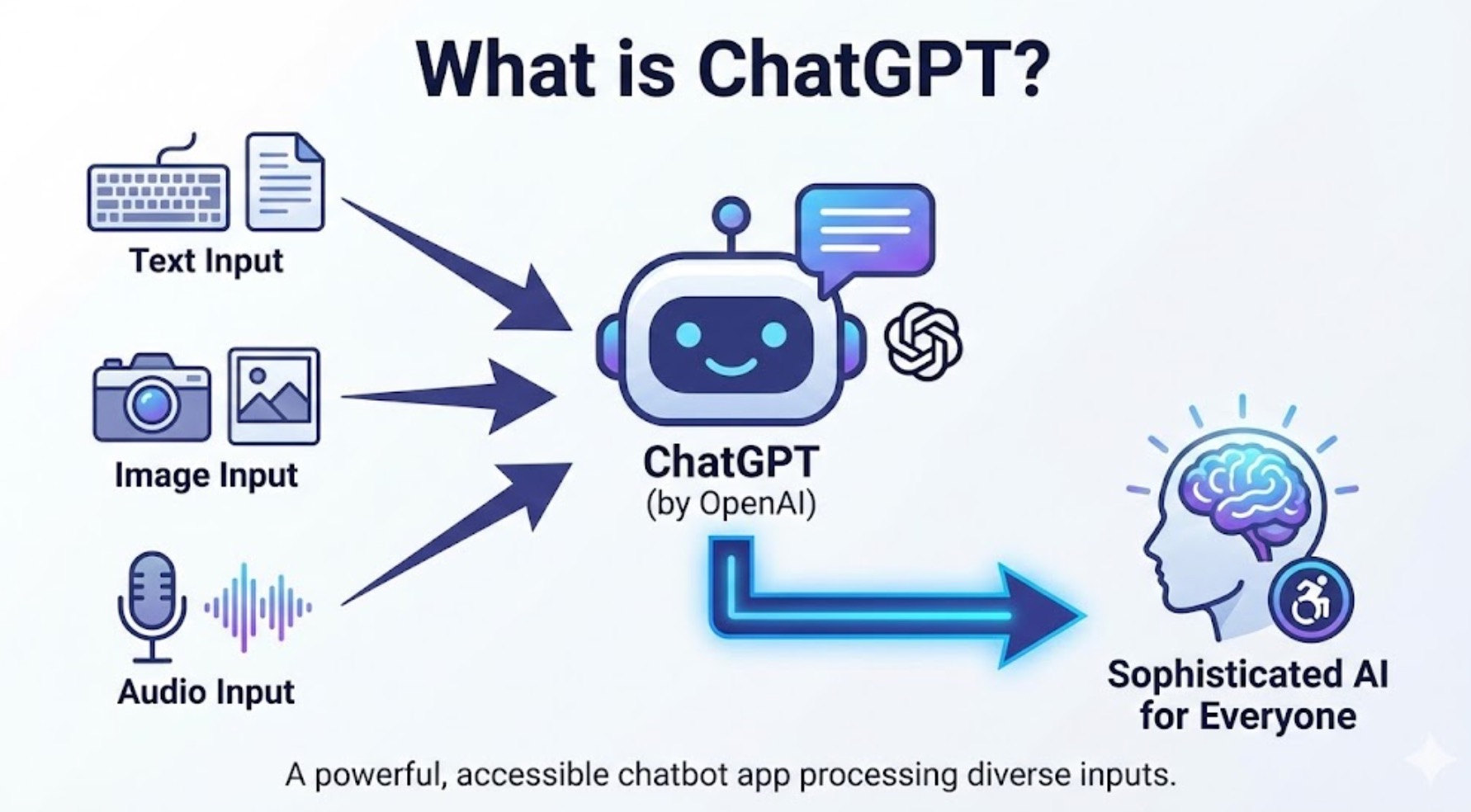
ChatGPT is a chatbot app built by OpenAI that can process text, image, and audio inputs (depending on the AI model you use). It represents one of the most significant advances in artificial intelligence technology, making sophisticated AI capabilities accessible to everyone.
In practice, this means it can do things like:
- Hold a voice or text-based conversation with you, answering questions about almost any topic
- Generate text for any occasion—for example, poetry, blog posts, and emails
- Brainstorm ideas for projects, content, and creative endeavors
- Generate images (and tweak them based on your requests)
- Search the internet for current information
- Analyze images and provide detailed descriptions or insights
- Create charts and graphs based on your inputs
- Analyze data from spreadsheets and documents
- Translate natural language or design mockups to code
- Interact with your computer and take basic actions on your behalf
And practically anything else you'd imagine a multimodal chatbot trained on the entirety of the internet might be able to do.
How to Use ChatGPT on the Web or Mobile App
Getting started with ChatGPT is straightforward. Here's a summary of the process:
- Go to chat.com or the mobile app, and log in or sign up (it's free).
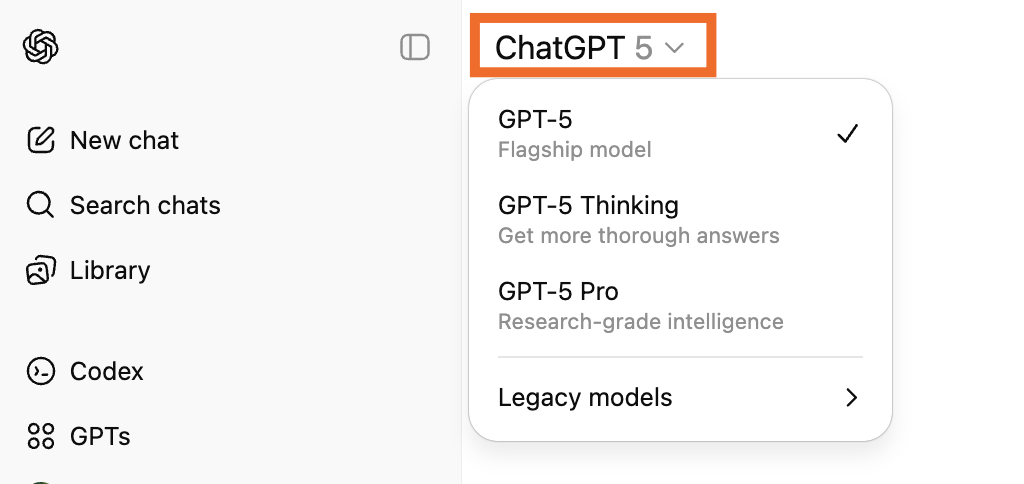
- If you're on a paid plan, choose the AI model that you want to use.
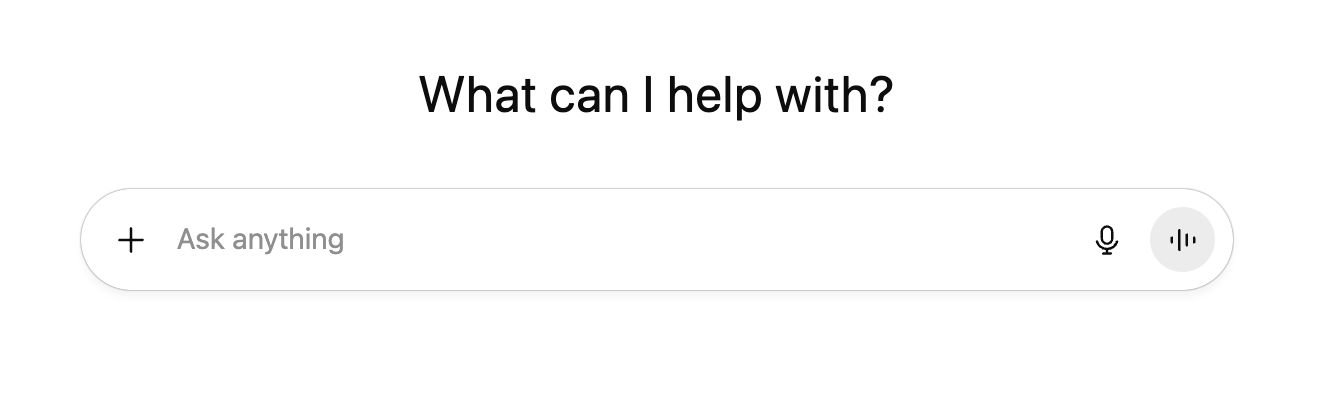
- Enter your text, image, or audio prompt on the ChatGPT home page.
- Once ChatGPT spits out a response, you have a handful of options:
- Edit your original prompt
- Enter or say a new prompt
- Review the sources
- Copy the response
- Regenerate the response
- Like or dislike the response
- Share the response
- Edit the response in a separate canvas
Now let's take a closer look at the finer details of using ChatGPT.
Step 1: Create Your OpenAI Account
Integrate ChatGPT with your favorite apps and automate repetitive tasks to boost productivity.
Automate ChatGPT →To get started with ChatGPT, you first need to create an OpenAI account (it's free). To do this, go to chat.com, and click Sign up. You can use an email address, or you can sign in with your Google or Microsoft account. If you use an email address, you'll be required to do a phone verification to confirm that you're really a human and not, ironically, a bot.
Already have an OpenAI account? Click Log in to start chatting.
If you're having trouble signing up or logging in, your best bet is to reload your page. For specific login issues, check out OpenAI's troubleshooting tips.
Step 2: Choose Your AI Model
If you're on a paid tier, you can choose which AI model you want to power your ChatGPT. Click the model dropdown in your conversation window, and then select the model you want to use.
Step 3: Ask ChatGPT a Question
You can prompt ChatGPT in several ways:
Type Your Prompt
Enter your ChatGPT prompt (text query) in the message bar of the home page, and hit Enter or click the up-facing arrow.
Use ChatGPT Search
Explicitly tell ChatGPT to search the web to inform its response. Click the plus (+) icon, select Web search, and enter your prompt.
Use Deep Research
Get ChatGPT to comb through hundreds of online sources with deep research. Click the plus icon, select Deep research, and enter your prompt.
Talk to ChatGPT
Press the Voice Mode icon in the message bar or press the microphone icon to enter your prompt using speech-to-text.
Upload Files or Images
Drag and drop files from your computer into the message bar, or click the plus (+) icon and select Add photos & files.
Step 4: Interact with ChatGPT's Responses
In a matter of seconds, ChatGPT will spit out a reply, and you can read or listen to the response. Apart from that, you have a number of other options:
Edit your original prompt. Hover over the prompt and click the Edit message icon that appears (it looks like a pencil). Edit your prompt, and then hit Enter.

Enter (or say) a new prompt. Ask ChatGPT to modify its response. ChatGPT will refer back to whatever you were discussing before and use that to inform its response, so you don't have to repeat yourself.
Review the sources. Hover over any source pill in the answer to learn more about the source used to inform ChatGPT's response. Click it if you want to go directly to the source.

Copy the response. If you like ChatGPT's answer and want to share it somewhere else, click the Copy icon beneath the response you want to copy.

Get a new response. If the response isn't quite what you're looking for, and you want to use the same prompt, click Try again.
Like or dislike the response. Since ChatGPT doesn't have the ability to interpret your headshaking, it can't determine if the response it generated is good or bad on its own. Instead, it relies on humans to provide that data to help it learn. Click the Good response or Bad response icon to let it know.

Edit in a separate canvas. If you want to pull the response out into its own document, click the Edit in Canvas icon. That will open up a new canvas where you can work on the response in detail.

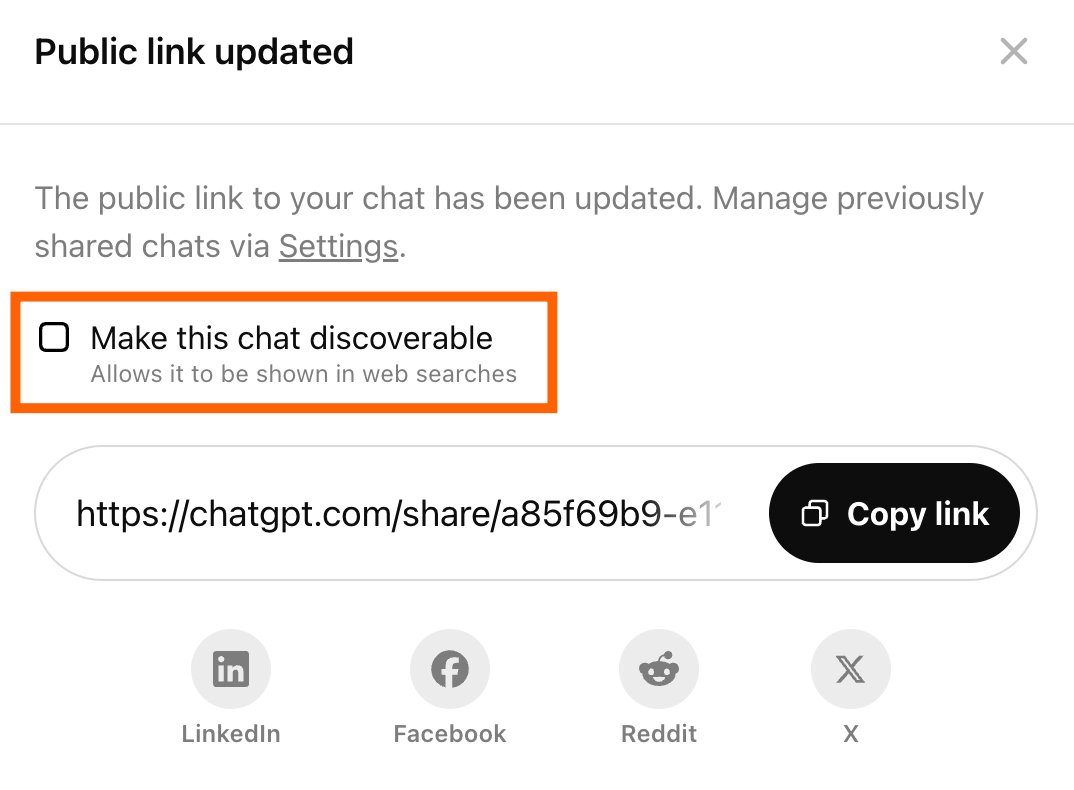
Share your conversation. Instead of screenshotting bits and pieces of your conversation with ChatGPT to share with your friends and colleagues, share the entire conversation. Click Share at the top of your chat window. This will generate a unique URL for that specific conversation.
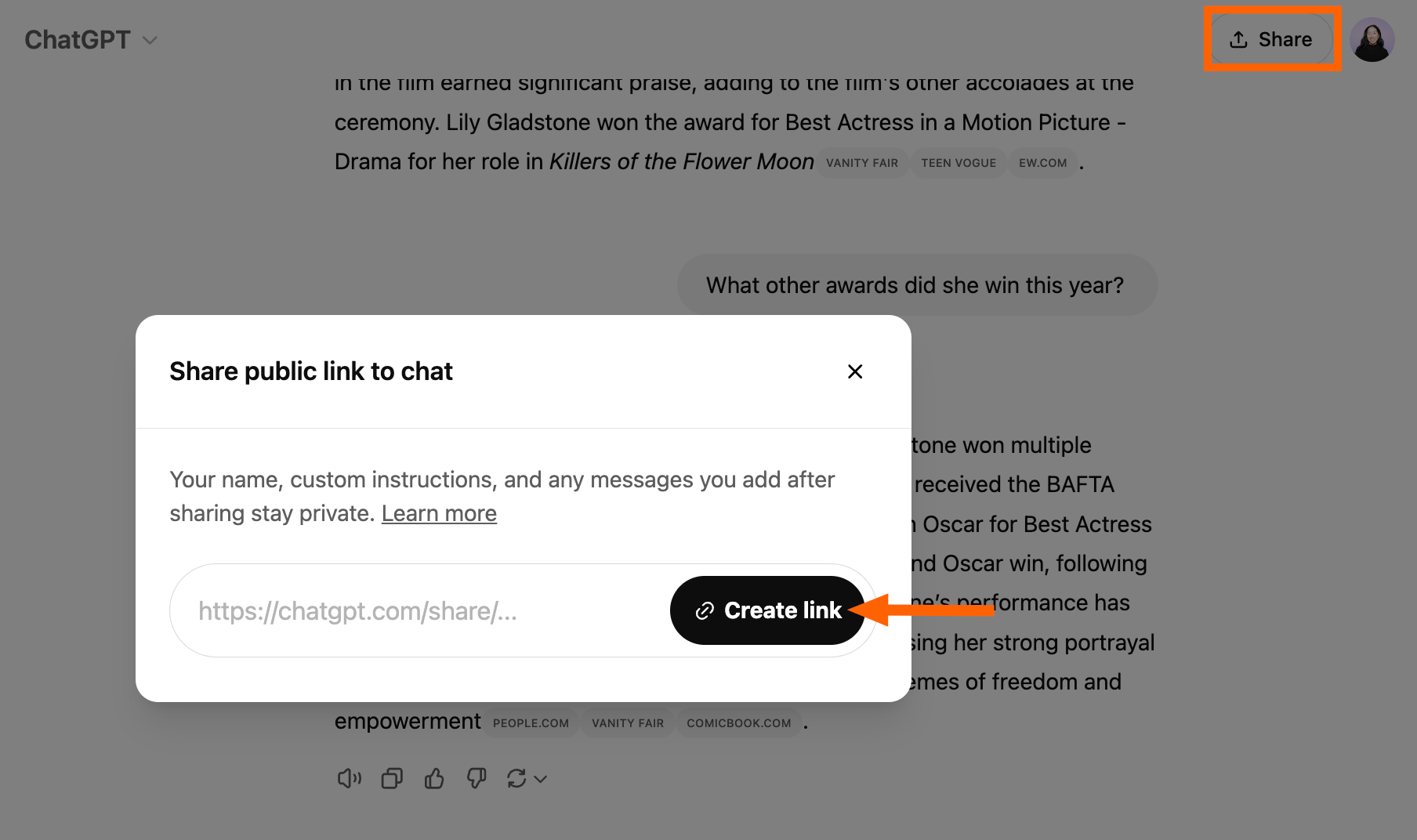
You also have the option to make your chat public (it'll appear in web searches). If you want to do this, click the box next to Make this chat discoverable.
How to Download and Use the ChatGPT Desktop App
You can also chat with ChatGPT via the desktop app (available for macOS and Windows). But first, you have to install the app. Note: The download process is different for the Mac and Windows desktop apps, but the functionality is the same.
How to Use the ChatGPT Desktop App
Here's how to use the ChatGPT desktop app on both platforms:
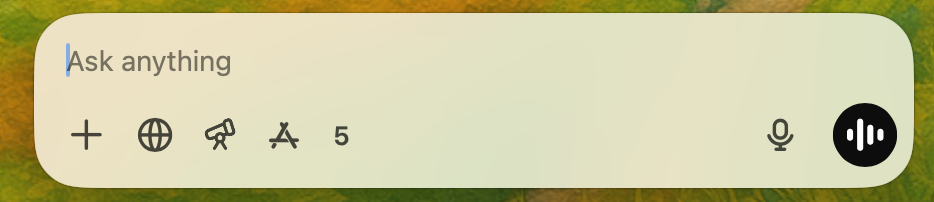
- Open the app. Or use the keyboard shortcut to open the ChatGPT launcher (an unobtrusive popup to initiate your chat):
option+spacebar(Mac) orAlt+spacebar(Windows). - You can prompt the desktop app in a few ways:
- Type your prompt in the message bar. You can also click the microphone icon to enter your prompt using voice-to-text.
- Talk to ChatGPT. Click the voice mode icon to have a live conversation.
- Upload a file or photo. Click the plus icon (
+) to upload a file or photo. You can also take and discuss screenshots or photos captured directly via the app.
- Once ChatGPT spits out a response, you can interact with it as you normally would.
How to Customize ChatGPT
If you find yourself prompting ChatGPT with the same instructions every time you interact with it—like "Write the response in Python" or "Keep the tone casual"—you don't have to. Here's how to customize ChatGPT on a free or paid plan.
How to Use Custom Instructions in ChatGPT
Create free custom AI chatbots to engage customers and take action with built-in automation.
Get Started →For users on a free plan, you can set up custom instructions in ChatGPT. This lets you program ChatGPT with instructions you want it to always keep in mind when generating a response. Here's how to set it up:
- Click on your profile, and then click Customize ChatGPT.
- In the popup that appears, click the toggle next to Enable for new chats.
- Enter any relevant details to help ChatGPT tailor its responses. For example, if you know your writing style, enter those details under What traits should ChatGPT have?
- Click Save.
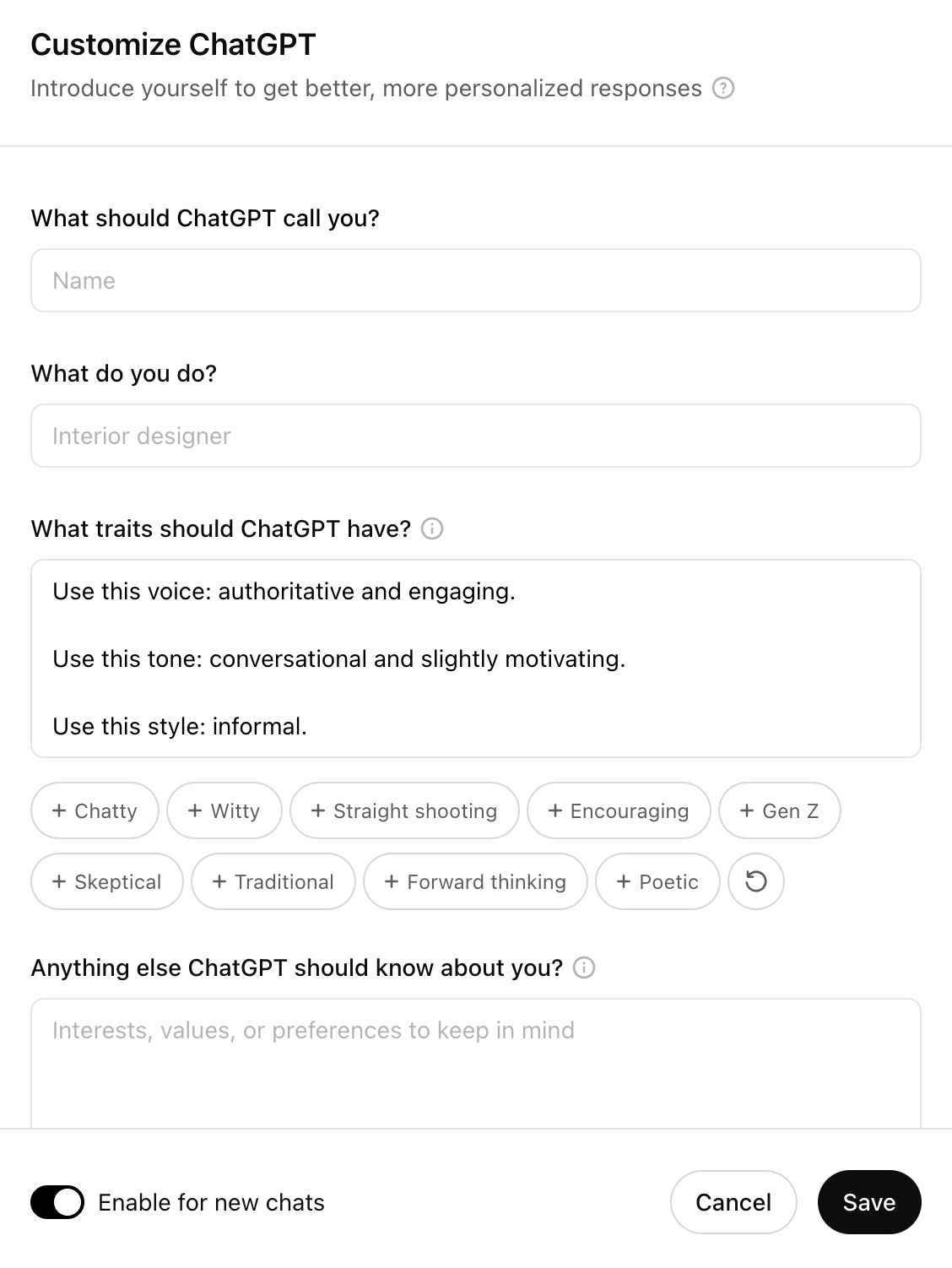
Unless you explicitly tell it otherwise in a prompt or you disable custom instructions, ChatGPT will automatically keep your custom instructions in mind every time it generates a response.
How to Create a Custom GPT
If you're on a paid tier, you can use natural language to create a custom ChatGPT (also known as a GPT)—each programmed with its own set of instructions—or use prebuilt ones, such as Data Analyst. Note: If you're on a free plan, you can use GPTs, but you can't create them.
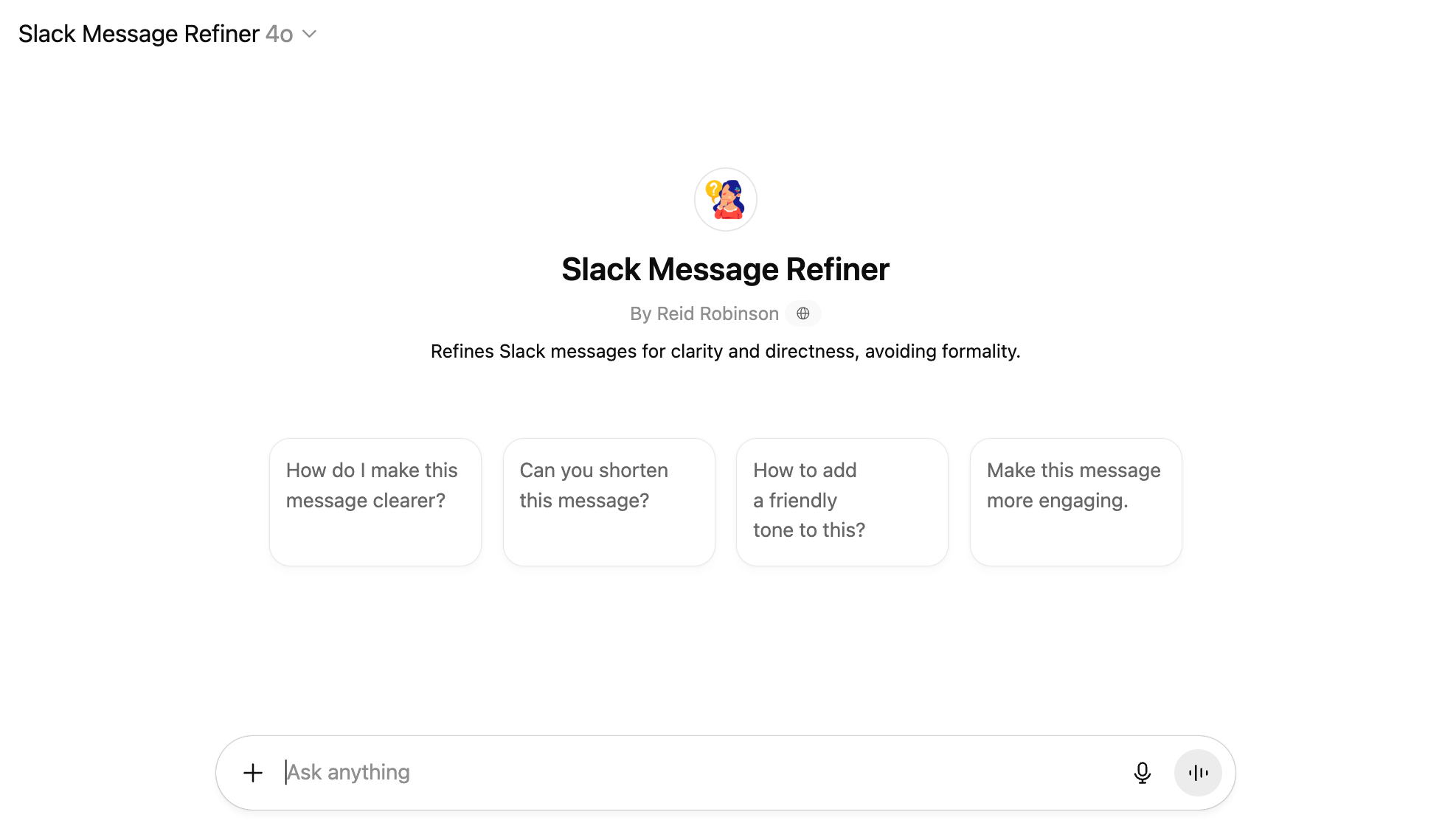
Here's the short version of how to create a custom GPT (for more details, check out the beginner's guide):
- With ChatGPT open, click GPTs in the side panel.
- Click Create in the top-right corner.
- Enter your instructions in the message bar of the Create page. Chat with the GPT builder until you get the results you want.
- Click Configure to add advanced customizations to your AI assistant.
- Click Create, and select how you want to share your custom GPT.
- Click Update.
You can also interact with these GPTs from any conversation—just enter @[GPTname] followed by your prompt in the message bar of an existing GPT chat.
Custom GPTs are great for tailoring how ChatGPT responds inside the app. But if you want a chatbot that can also interact with the rest of your tools—like updating your CRM, sending messages, or surfacing insights across platforms—use Zapier Chatbots instead.
Learn more about how to use Zapier Chatbots, or get started with one of these pre-made chatbot templates.
IT Help Desk
Improve your IT support with AI-powered responses, automatic ticket prioritization, and knowledge base updates.
AI Chat for Lead Generation Template
Increase lead engagement with a conversational chat experience embedded on your website.
Zapier is the most connected AI orchestration platform—integrating with thousands of apps from partners like Google, Salesforce, and Microsoft. Use interfaces, data tables, and logic to build secure, automated, AI-powered systems for your business-critical workflows. Learn more.
How to Use ChatGPT Voice
Instead of typing in your prompt, you can actually talk out loud with ChatGPT. It's so fast that it gives the impression that you're having a real-time conversation.
Here's how ChatGPT's voice mode works on the desktop app (it works pretty much the same in the web and mobile app):
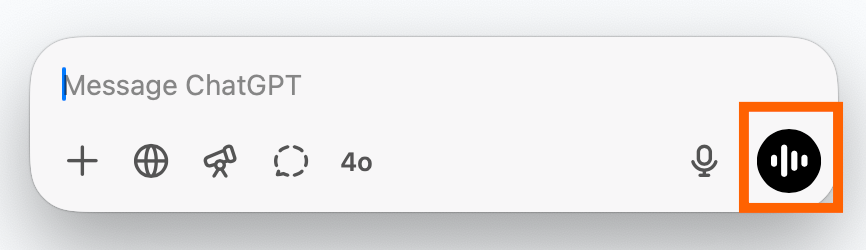
- With a ChatGPT conversation open, click the voice mode icon, which looks like sound bars, in the message box.

- A black dot will appear on your screen. Once a wave-like animation appears, that's your cue to say your prompt.
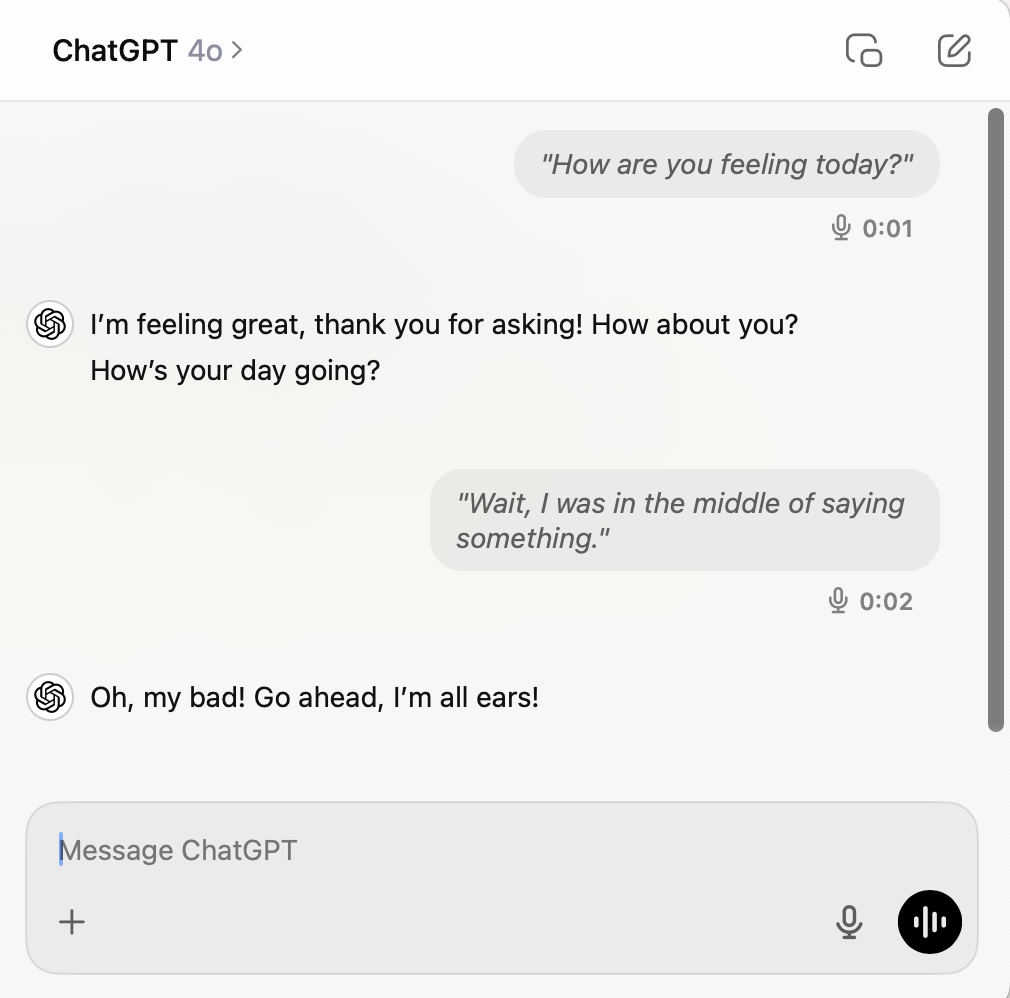
- Once you've finished speaking, ChatGPT will process your request (no need to hit send) and voice its response to you. Need to pause ChatGPT? Interrupt it the way you naturally would in a conversation.
When you're done chatting, a text version of your entire conversation will appear and is automatically saved in your chat history.
How to Upload and Show Images to ChatGPT
You can also add an image to your chat and discuss it with ChatGPT.
How to Upload Images from the Web App
- Click the plus icon in the message bar, and then select Add photos & files. You can also drag and drop the files from your computer into the message bar. Or you can add an image directly from Google Drive or OneDrive.
- Select the image(s) you want to add.
- Enter your accompanying prompt.
- Hit Enter.
How to Upload Images from the Desktop App
- Click the plus icon (
+) in the message bar. - Select how you want to add your image—you can upload a photo, or take a photo or screenshot directly from the app.
- Enter your accompanying prompt.
- Hit Enter.
How to Upload Images from the Mobile App
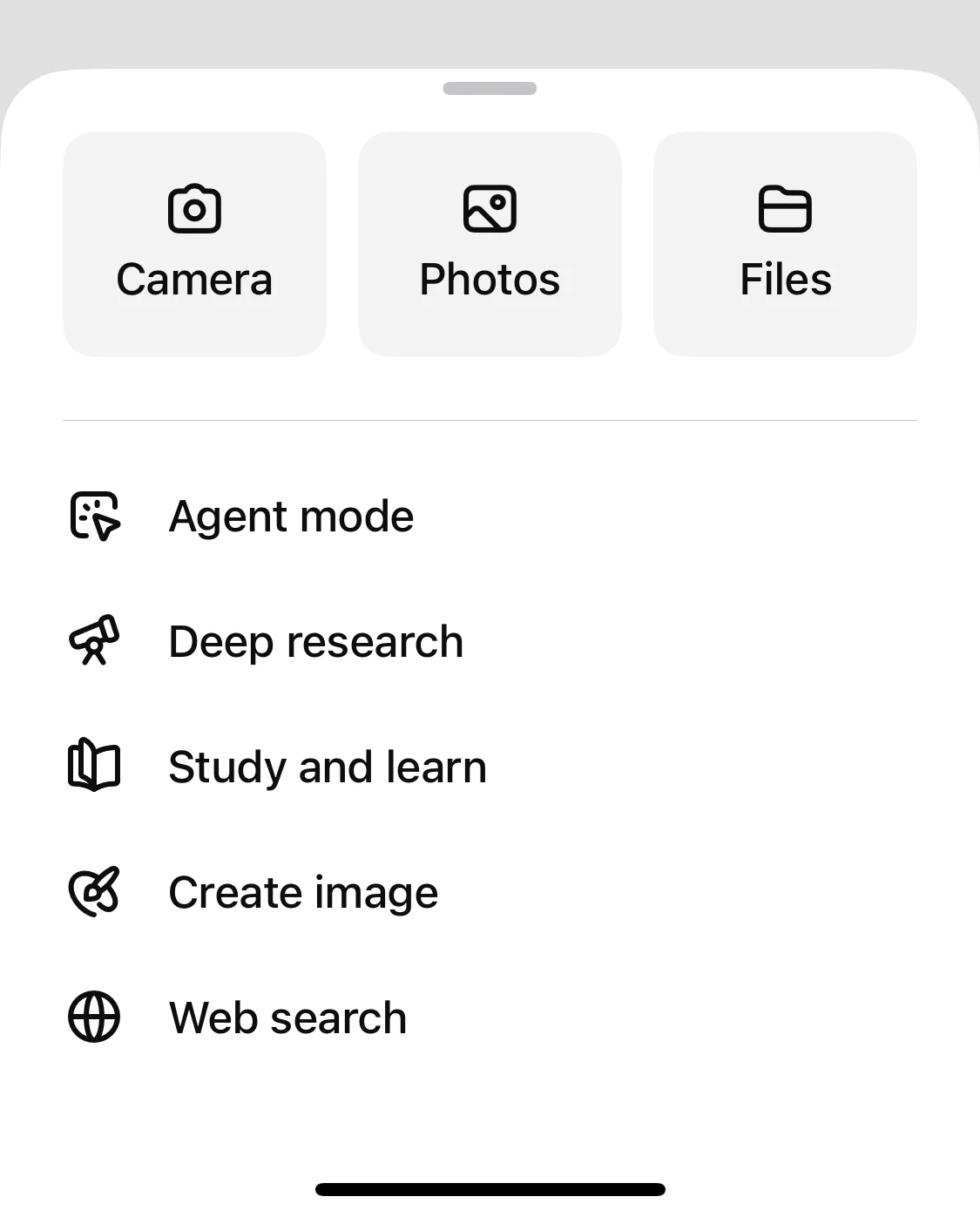
- Tap the plus icon (
+) in the message bar. - Select how you want to add your image: You can upload an image from your phone or take a photo.
- If there's a specific part of the image you want to discuss, you can circle the image or annotate it however you want.
- Tap Next.
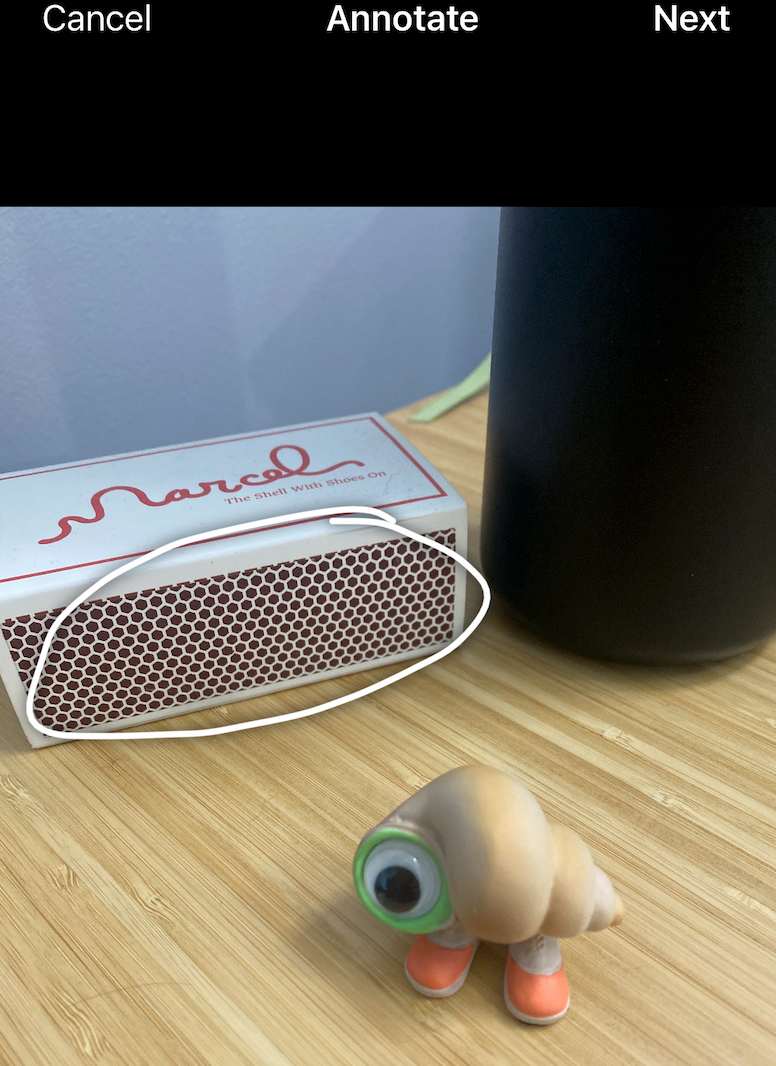
- Enter your accompanying prompt. Tap Send.
How to Use ChatGPT's Non-Chat Features
Not every feature in ChatGPT is directly related to actually chatting with the chatbot. Here's how to use ChatGPT's chat-adjacent features so you can get more out of your right-hand bot. Note: Some features may be available only on select plans.
How to Use Projects in ChatGPT
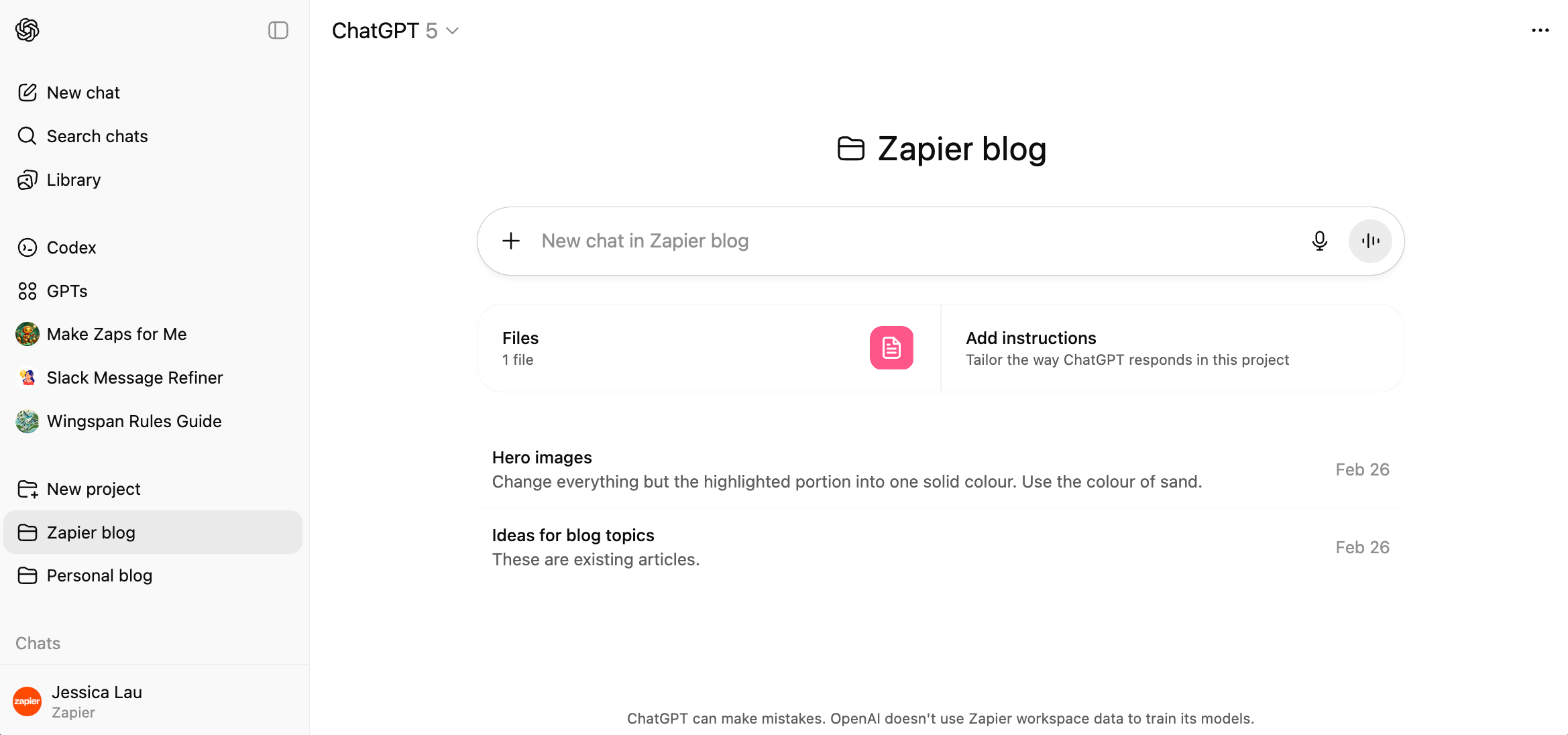
Projects in ChatGPT offer a way to keep related chats, memories, custom instructions, and other reference material in neatly contained groups. This way, you can jump between projects and have ChatGPT simultaneously context switch with you.
- In the ChatGPT side panel, click New project.
- Enter a name for your project, and click Create project.
- From here, you have a few options within your project:
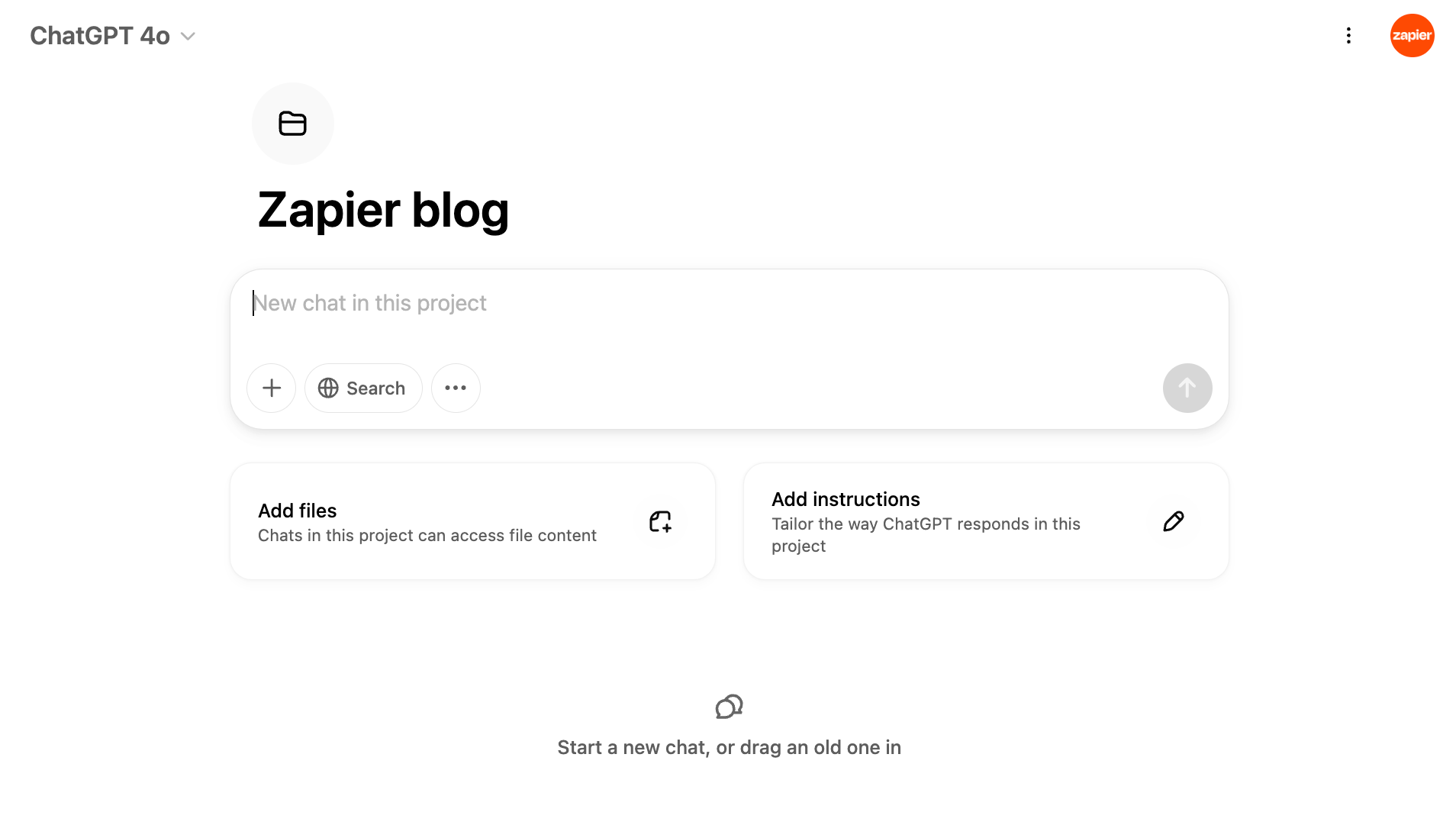
- Start chatting. Enter your prompt in the message box and chat with ChatGPT as you normally would.
- Add knowledge sources. Click Add files to upload any files you want ChatGPT to reference for that project.
- Add custom instructions. Click Add instructions, and enter your project-specific instructions.
How to Use ChatGPT Scheduled Tasks
To get even more out of your AI assistant, use ChatGPT to complete scheduled tasks. Here's a quick overview of how to set up a task. (For more details, check out how to use ChatGPT scheduled tasks.)
- Start a new chat or set up your task from an existing one.
- Describe the task you want ChatGPT to complete and when.
- ChatGPT will display the scheduled task in your chat.
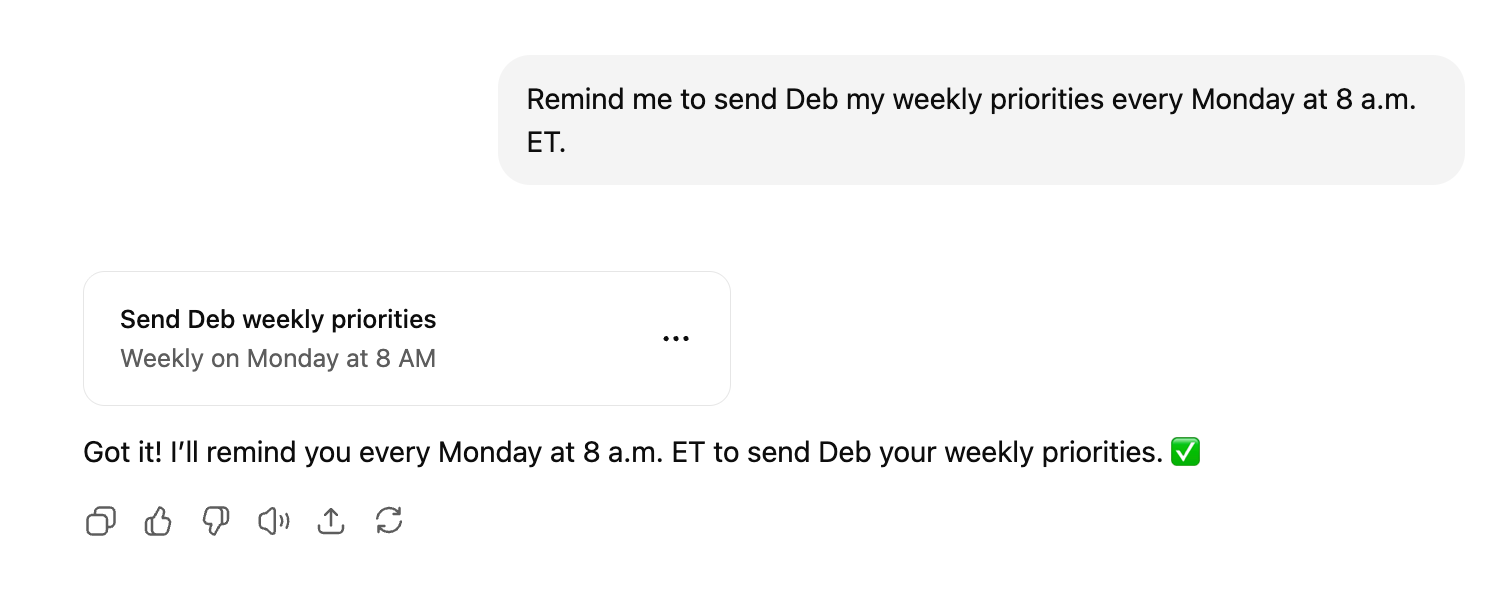
- If you need to revise your task, click the horizontal three dots menu (
...) next to the task confirmation in your chat. - Click Edit.
- Edit your scheduled task as needed.
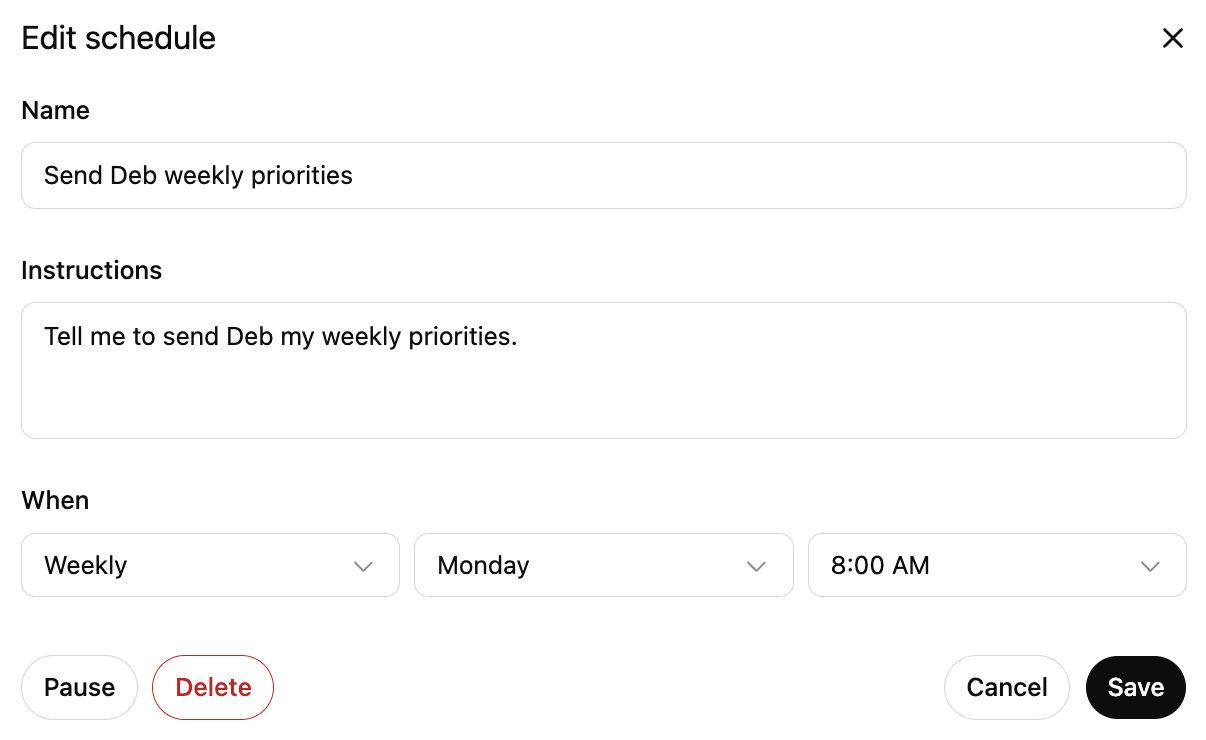
- Click Save.
How to Use ChatGPT Canvas
ChatGPT canvas is a self-contained output that's generated from your conversation. The output appears in a dedicated window next to your main chat so that you can dial in on the exact prompt that you want to refine. Here's the simplest way to use it. (For more detailed steps, check out how to use ChatGPT canvas.)
- Enter your prompt as you normally would and ask ChatGPT to output its response as a canvas or "create a document."
- ChatGPT will output its response within a "page" on your screen.
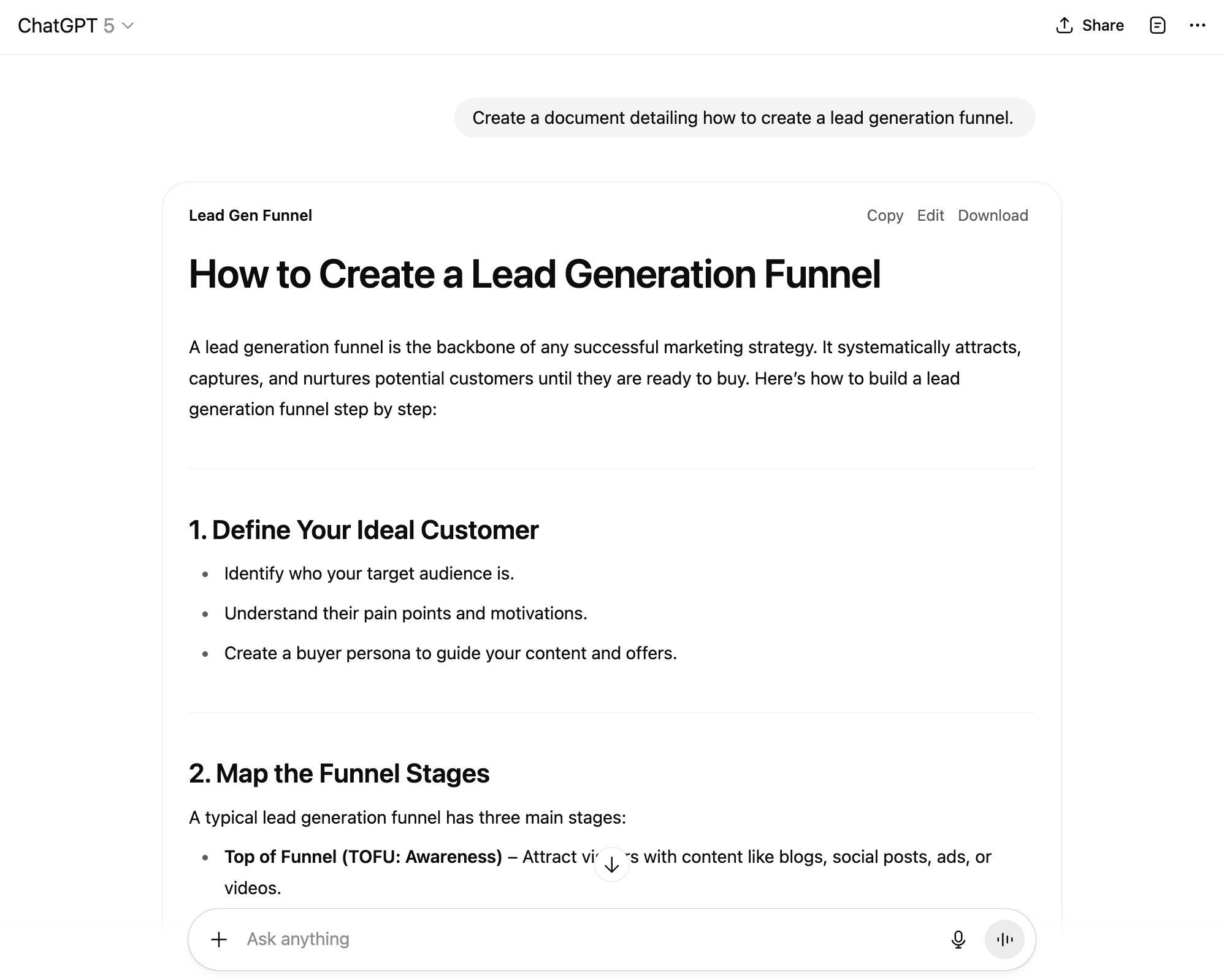
- To edit the output, click Edit above the response.
- The page output will expand into the right half of your screen while displaying your main conversation on the left.
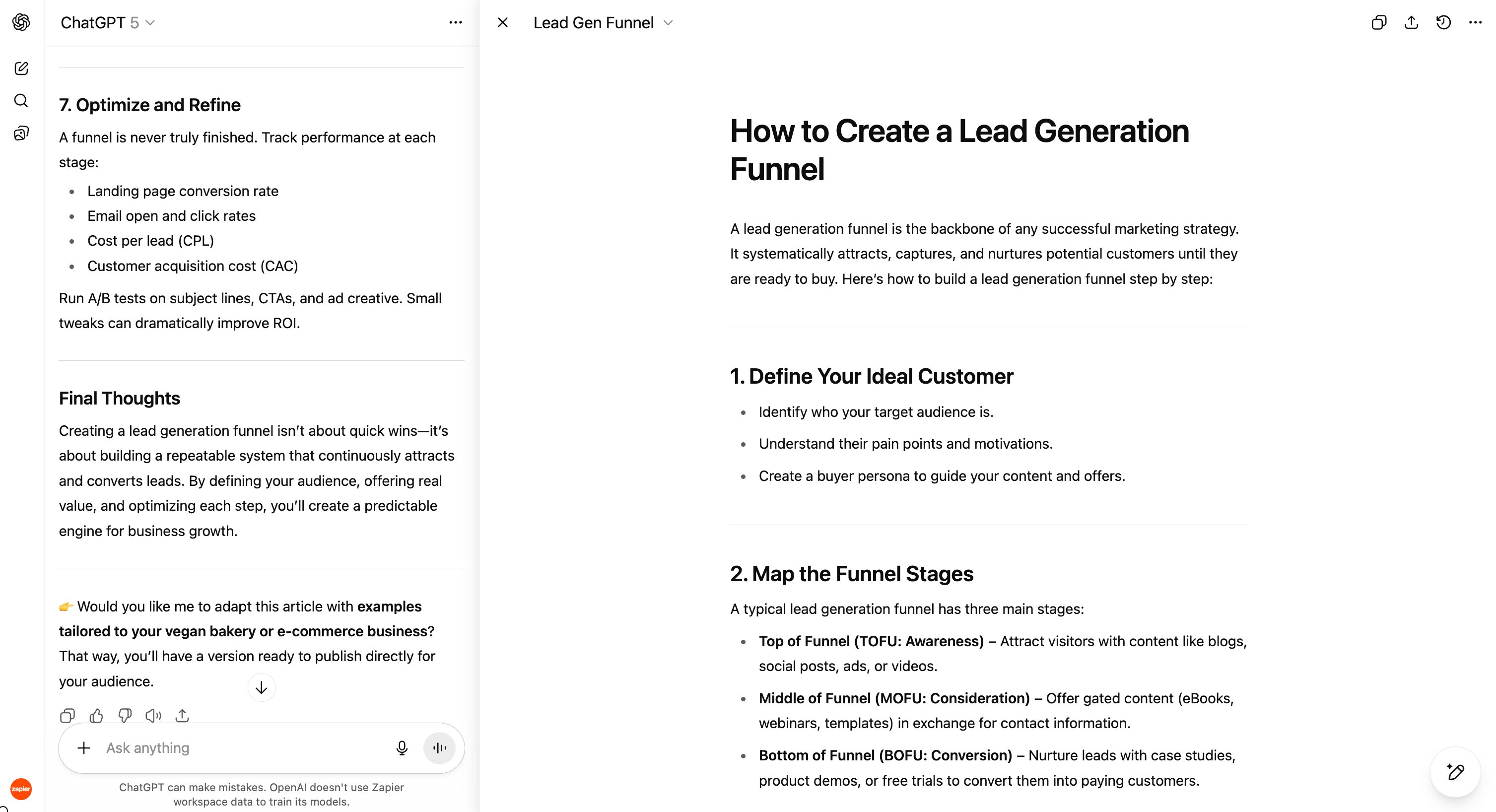
- Edit your output directly in the canvas. You can also highlight specific sections to make targeted edits.
How to Use ChatGPT Agent
ChatGPT Agent is an AI agent that can surf the web and perform tasks for you. For example, it can fill out forms, download files, and even generate memes.
To use it, select it from your tools menu or type /agent in the message bar. Describe the task you want the agent to run, and it'll take care of the rest.
If you're eager to put AI agents in action, you can try Zapier Agents. On Zapier, you can build and deploy agents that connect with thousands of apps, so you can orchestrate an end-to-end system across your organization.
Learn more about how to use Zapier Agents, or get started with one of these pre-made agent templates.
Try Lead Enrichment Agent →Can ChatGPT Refuse to Answer My Prompts?
For its part, OpenAI has expressed its commitment to keeping AI "safe and broadly beneficial." To do this, they've introduced various safeguards, including the ability for ChatGPT to reject inappropriate, offensive, or illegal content.
ChatGPT has explained that it won't respond to prompts that involve:
- Harmful or unsafe requests — Instructions for making weapons, explosives, or dangerous substances, nor content promoting self-harm, suicide, or violence.
- Private or sensitive information — Generating or exposing personal, confidential, or financial data, private communications, or impersonations of real people.
- Ethical and legal restrictions — Creating deepfakes of real people without consent, plagiarized or copyrighted material, or illegal advice.
- Inappropriate or adult content — Sexually explicit content involving real people, harassment or hate speech, or graphic gore and violence.
- Misuse of capabilities — Continuously monitoring files or accounts, providing exhaustive listings of documents, or pretending to be a professional it's not.
To be clear, this isn't a complete list of rejection-worthy prompts. But if you're ever wondering about ChatGPT's limits, just ask it yourself—but take it with a grain of salt.
How to Manage Your Data in ChatGPT
There are a number of ways to manage your data in ChatGPT. The steps vary depending on what you want to do and the device you're using.
How to Manage ChatGPT's Memory
ChatGPT's memory functionality works similarly to custom instructions with one key exception: you don't have to manually tell ChatGPT what you want it to know or how to respond. Instead, ChatGPT automatically picks up on details and preferences to tailor its responses.
- Click on your profile, and then click Settings.
- Click Personalization.
- Next to Manage memories, click Manage.
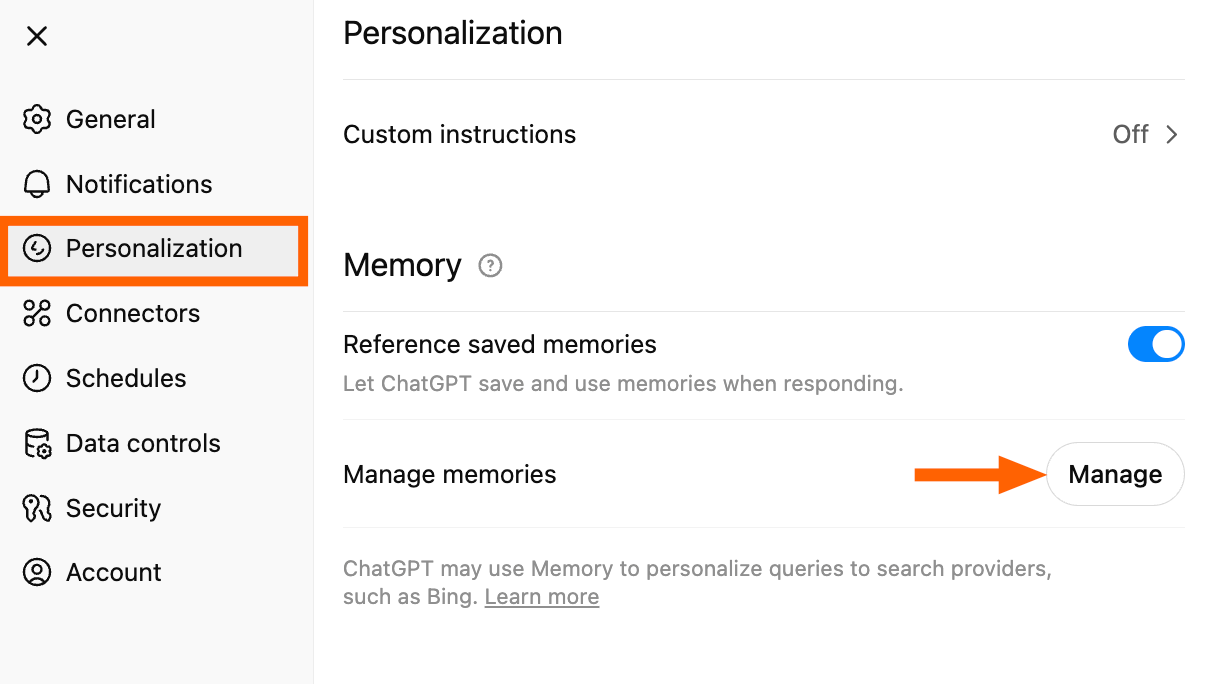
- From here, you can:
- Delete specific memories. Click the Remove icon next to any memory you want ChatGPT to forget.
- Delete all memories. Click Delete all to clear all of ChatGPT's memories at once.
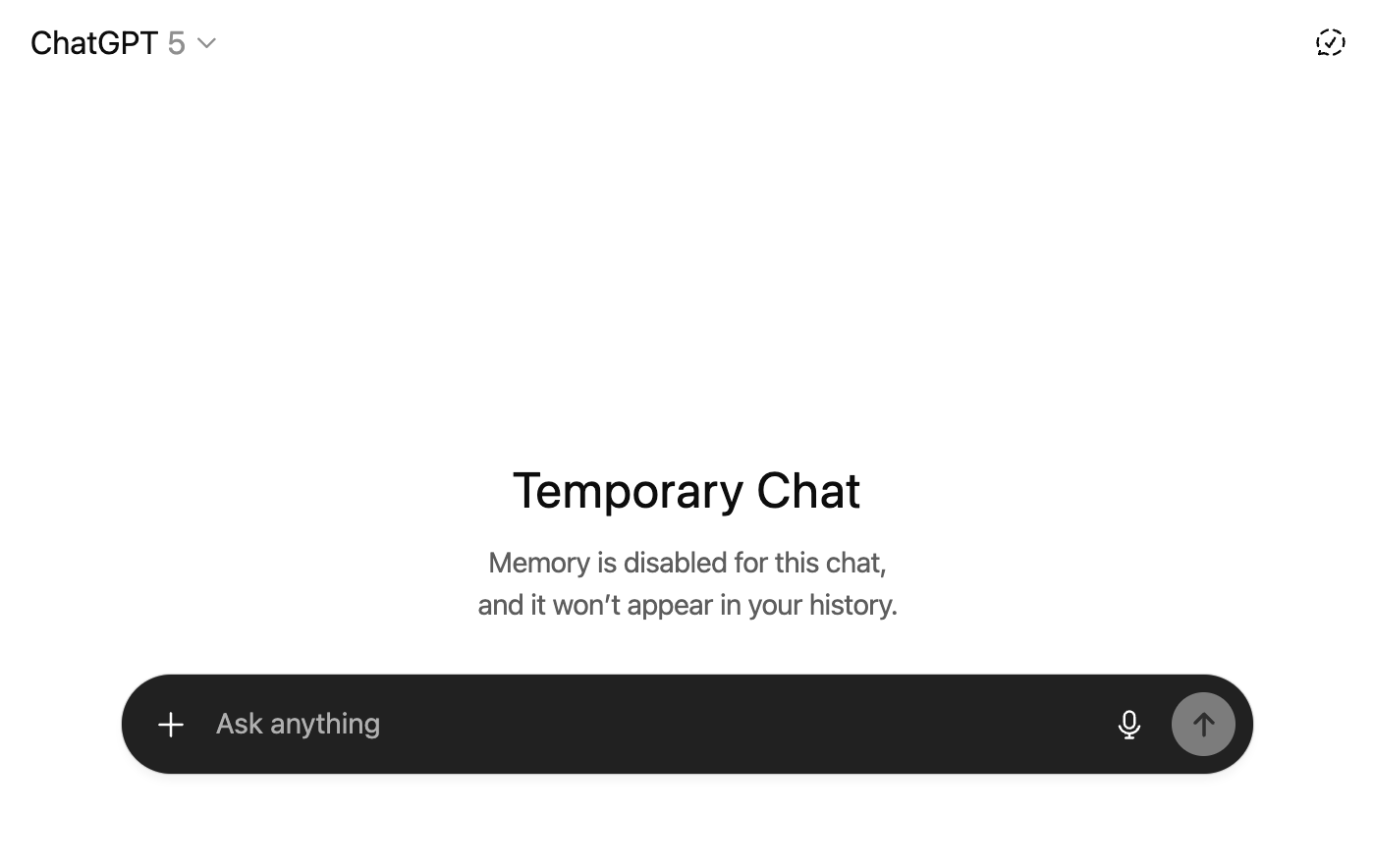
How to Use Temporary Chats
If you'd like to have the occasional conversation without ChatGPT or GPTs using or creating memories, use a temporary chat instead:
- Start a new chat.
- Click the Temporary chat icon (it looks like a speech bubble) in the top-right corner.
- The message bar will turn black to make it obvious that the feature is enabled.
How to Turn Off Model Training
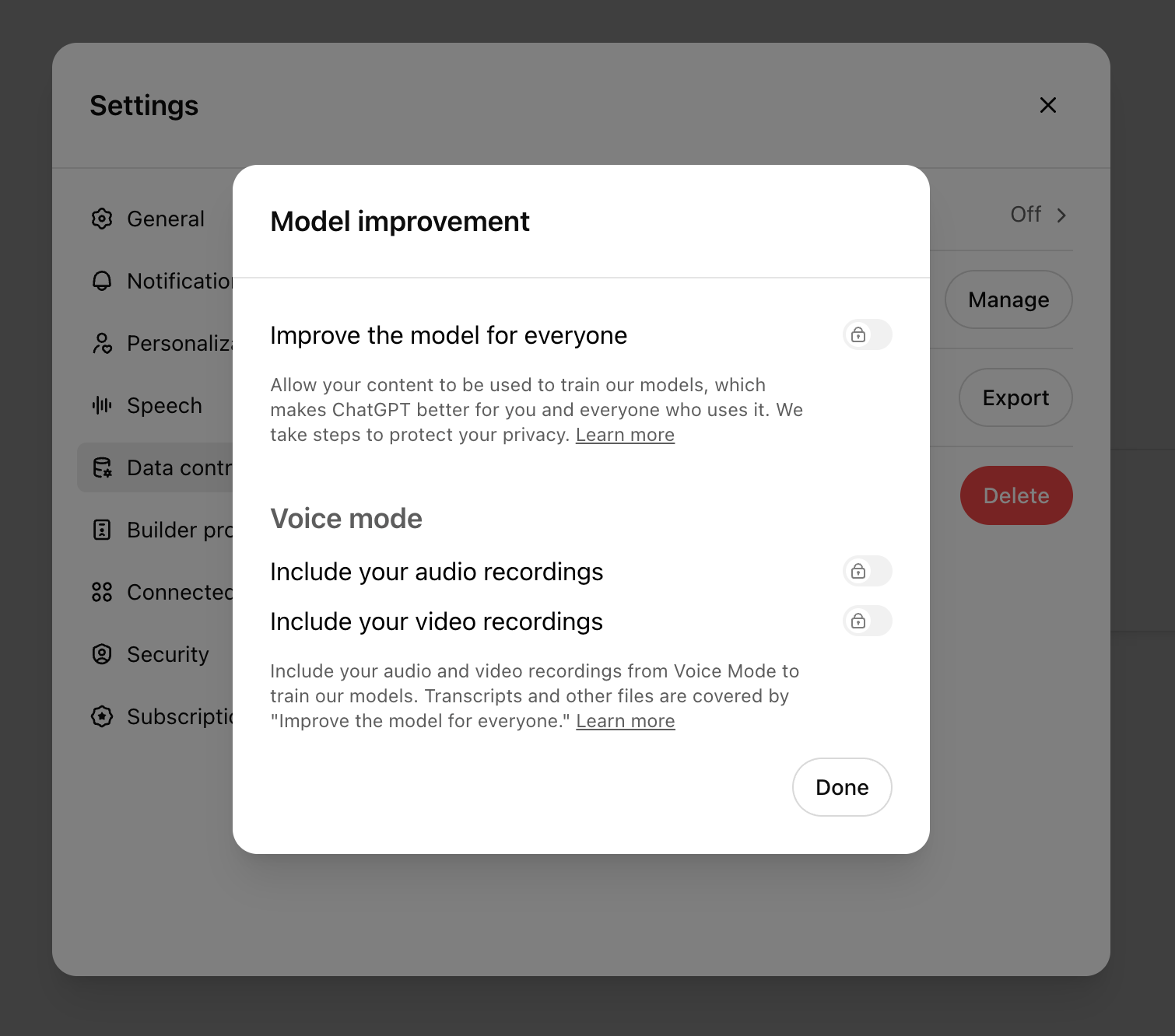
By default, your conversations and memories can be used as training data to improve OpenAI's models. If you want to turn this setting off:
- Click on your profile, and then click Settings.
- Click Data controls.
- Click Improve the model for everyone.
- Click the toggle next to Improve the model for everyone.
- Click Done.
How to Delete Your ChatGPT Conversations
To delete all your past conversations at once:
- Click on your profile, and then click Settings.
- Click Data controls, and then click Delete all.
- Click Confirm deletion. (There's no undo button.)
To delete specific conversations:
- In the ChatGPT side panel, hover over the name of the conversation you want to delete.
- Click the Options icon (
...). - Click Delete.
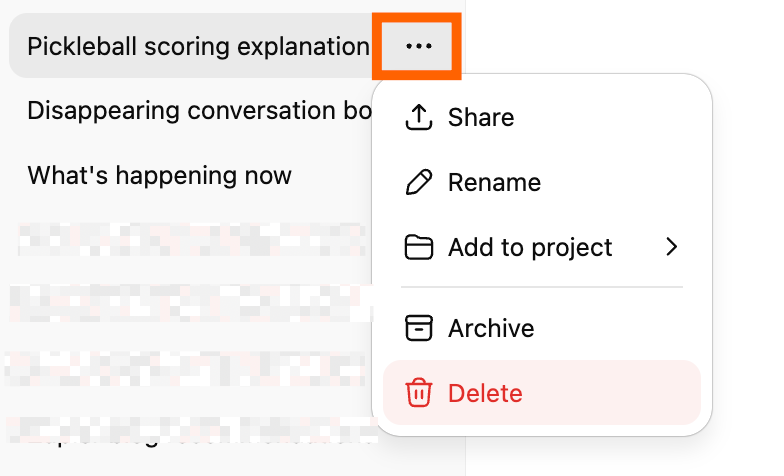
- Click Delete to confirm.
How to Archive Your ChatGPT Conversations
You can archive less relevant chats in a separate place that you can revive later on:
- In the side panel, hover over the name of the conversation you want to archive.
- Click the Options icon (
...). - Click Archive.
To view or restore an archived chat, go to Settings, then Archived chats, and click Manage.

Automate ChatGPT with Zapier
While ChatGPT is impressive on its own, you can put ChatGPT to work even more by integrating it with your other software. On Zapier, you can connect ChatGPT with thousands of other apps, so you can layer AI into every step of your workflows.
Learn more about how to automate ChatGPT, or click on any of the pre-made templates to get started.
Automatically Reply to Google Business Profile Reviews with ChatGPT
Google Business Profile + ChatGPT (OpenAI)
Send Prompts to ChatGPT for Google Forms Responses and Add to Google Sheet
Google Forms + ChatGPT (OpenAI) + Google Sheets
Create Email Copy with ChatGPT from New Gmail Emails and Save as Drafts
Gmail + ChatGPT (OpenAI)
Create ChatGPT Conversations from New tl;dv Transcripts
tl;dv + ChatGPT (OpenAI)
How to Use ChatGPT: FAQs
Here are answers to some commonly asked questions about ChatGPT.
What Models Does ChatGPT Use?
As of this writing, ChatGPT's main models are GPT-5, GPT-5 mini, and GPT-5 nano. But at the rate OpenAI keeps expanding its models, there could be newer versions by the time you're reading this.
Is ChatGPT Free?
You can create an OpenAI account for free to use ChatGPT. But there are limitations. For example, you're limited on the number of messages you can send and you may not have access to ChatGPT during peak times.
What's the Difference Between a Free and Paid ChatGPT Subscription?
There are two levels of paid ChatGPT subscriptions aimed at individual users: Plus ($20/month) and Pro ($200/month). For a comparison, check out Is ChatGPT Plus worth it? and What is ChatGPT Pro—and is it worth it?
Can I Search My ChatGPT History?
ChatGPT does have built-in search functionality. Click Search chats in the side panel or use the keyboard shortcut: command+K (Mac) or Ctrl+K (Windows). Enter your search term and ChatGPT will list any conversations that contain it.
Can ChatGPT Create Images?
It can. ChatGPT's image generation capabilities are baked in—all you have to do is enter an AI art prompt, and it'll take care of the rest. If you prefer to generate images using DALL·E, you can use the DALL·E GPT.
Does ChatGPT Have Access to the Internet?
Yes—no matter which model you're running, ChatGPT can search the internet for current information.
How Accurate is ChatGPT?
ChatGPT's been known to produce completely made-up answers. When this happens, it's called a "hallucination." It's a lot less common now that the models are more advanced, but it can definitely still happen. ChatGPT will often cite the sources it used to inform its response—this way, you can easily fact-check what it said.
Does ChatGPT Remember Previous Conversations?
ChatGPT can "remember" details from the current conversation you're having with it—this is what gives the impression that you're having a real conversation. By default, ChatGPT also automatically picks up on details and preferences from previous conversations to tailor its responses. But you can turn off this setting. Learn how to manage your data in ChatGPT.