
 OpenAI - ChatGPT, Sora
 Google - Gemini, Nano Banana
 Anthropic - Claude
 xAI - Grok
 Deepseek
 Alibaba - Qwen
 ByteDance - Doubao
 All Models
 Enterprise Plans
 AI Application Development
 AI Translator API
 AI SEO/GEO Service
 GEO-Optimized PR Service
 Web Scraping Service
 OpenClaw
 Top AI Tools
 Top AI Robots
 Log in







How to Use Notebooks in Gemini with NotebookLM 2026: Complete Step-by-Step Tutorial
Google made a significant leap in its AI ecosystem on April 8, 2026, by launching Notebooks directly inside the Gemini app with full bidirectional synchronization to NotebookLM.
This integration allows you to create persistent project spaces that combine Gemini's powerful reasoning and generation capabilities with NotebookLM's grounded, source-based research tools — including its famous Audio Overviews.
What Are Notebooks in Gemini?
Notebooks act as dedicated project workspaces that live inside Gemini and automatically sync with NotebookLM. They solve the biggest limitation of traditional chats: lack of persistent context and organized sources.
With Notebooks, you can:
- Group related files, chats, and instructions together
- Set custom project rules
- Maintain long-term memory across sessions
- Seamlessly switch between flexible generation (Gemini) and deep grounded research (NotebookLM)
The feature is currently rolling out to Google AI Ultra, Pro, and Plus subscribers on the web.
Step-by-Step Tutorial
Step 1: Create Your First Notebook in Gemini
- Go to gemini.google.com and sign in.
- In the left sidebar, find and click Notebooks.
- Click + New notebook and give it a clear, descriptive name (e.g., "AI Agent Research 2026" or "Q2 Content Strategy").
Everything you add here will automatically appear in NotebookLM.
Step 2: Populate Your Notebook with Content
Inside the notebook:
- Upload PDFs, Google Docs, images, text files, or links.
- Drag and drop previous Gemini chats into the notebook.
- Add Custom Instructions that will apply to all conversations using this notebook.
This step turns your notebook into a rich, reliable knowledge base.
Step 3: Attach NotebookLM Notebooks to Gemini Chats
This is where the real power shows:
- Start a new chat in Gemini.
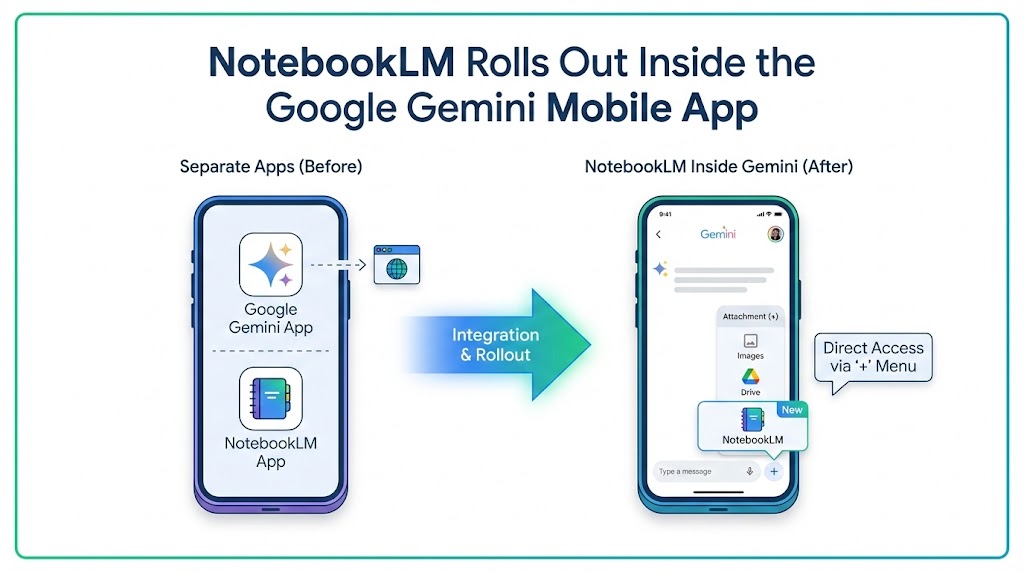
- Click the + attachment icon at the bottom of the chat box.
- Select NotebookLM from the options.
- Choose the notebook(s) you want to use as sources.
- Click Add.
Gemini will now answer using the content of your notebooks as trusted sources, while still accessing real-time web search when needed.
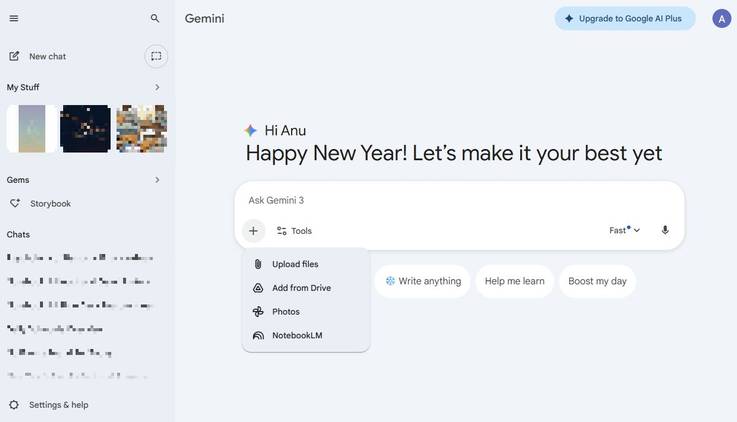
Step 4: Generate Rich Outputs with NotebookLM
Once your notebook is populated and attached:
- Use Gemini for brainstorming, analysis, drafting, and complex reasoning.
- Switch to NotebookLM to create polished outputs such as:
- Audio Overviews (podcast-style discussions)
- Video Overviews
- Slide Decks
- Mind maps and infographics
All outputs are based on the exact same synced sources.
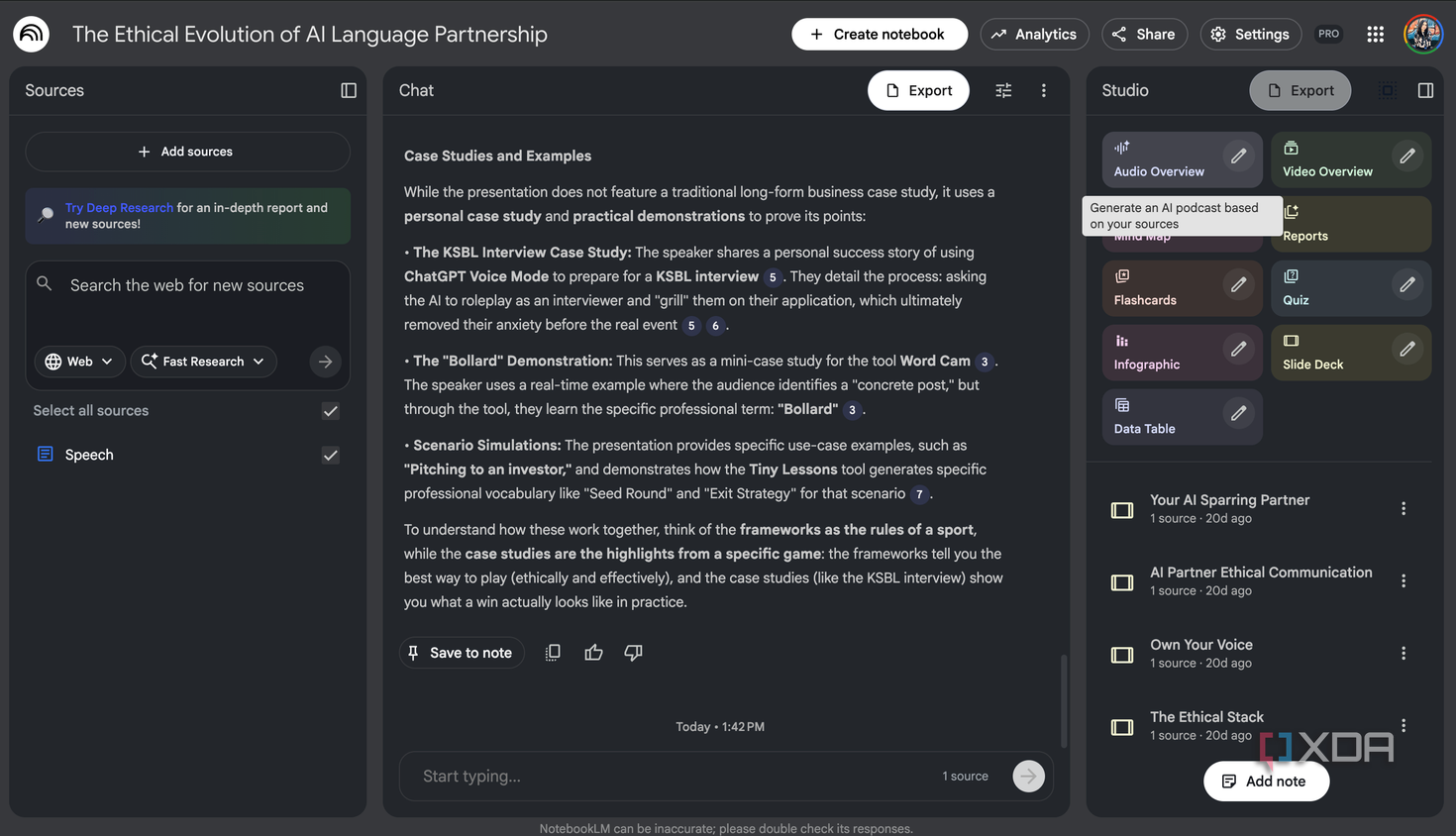
Best Practices for 2026
- Start with one focused notebook per major project.
- Use clear custom instructions to guide Gemini's behavior.
- Attach multiple notebooks when you need cross-domain synthesis.
- Regularly review and clean sources inside NotebookLM for best results.
Common Questions
Is Notebooks available on mobile?
Primarily on web for now. Full mobile support is expected in the coming weeks.
Does this replace NotebookLM?
No. NotebookLM remains the best tool for creating rich, grounded artifacts like Audio Overviews. Gemini excels at dynamic conversation and external knowledge integration.
Privacy?
Your notebooks stay private within your Google account.
Take Your AI Workflow to the Next Level
The new Notebooks + NotebookLM integration makes Google's AI tools significantly more practical for serious research and content creation. Persistent context and grounded sources finally feel seamless.